Chateau PRO ax
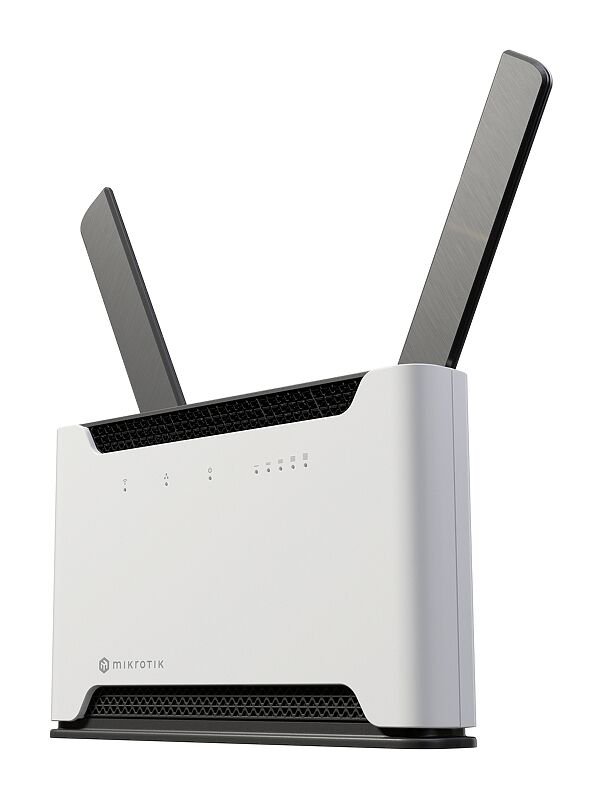
Chateau PRO ax (H53UiG-5HaxQ2HaxQ)
A Wi-Fi 6 home access point for the advanced users – it comes with an exceptionally powerful wireless system and a matching CPU. See the Chateau PRO ax product page for full specifications and brochures.
Safety Warnings
- Before you work on any equipment, be aware of the hazards involved with electrical circuitry, and be familiar with standard practices for preventing accidents.
- Ultimate disposal of this product should be handled according to all national laws and regulations.
- The Installation of the equipment must comply with local and national electrical codes.
- This product is intended to be installed indoors. Keep this product away from water, fire, humidity, or hot environments.
- Use only the power supply and accessories approved by the manufacturer, which can be found in the original packaging of this product.
- Read the installation instructions before connecting the system to the power source.
- We cannot guarantee that no accidents or damage will occur due to the improper use of the device. Please use this product with care and operate at your own risk!
- The socket-outlet shall be installed near the equipment and shall be easily accessible.
- In the case of device failure, please disconnect it from power. The fastest way to do so is by unplugging the power plug from the power outlet.
- It is the customer's responsibility to follow local country regulations, including operation within legal frequency channels, output power, cabling requirements, and Dynamic Frequency Selection (DFS) requirements. All MikroTik radio devices must be professionally installed.
- To avoid contamination of the environment, separate the device from household waste and dispose of it in a safe manner, for example, in designated areas. Become familiar with procedures for properly transporting the equipment to designated collection points in your area.
Exposure to Radio Frequency Radiation: This MikroTik equipment complies with the FCC, IC, and European Union radiation exposure limits set forth for an uncontrolled environment. This MikroTik device should be installed and operated no closer than 20 centimeters from your body, occupational user, or the general public.
Setup
- Ensure your Internet Service Provider (ISP) allows hardware changes and automatically assigns an IP address;
- Connect the ISP cable to the Ethernet1 port;
- Connect the device to the power source;
- Connect to the device through any of the ports, excluding Ethernet1, or the wireless network "MikroTik-..." (ensure to check the wireless passwords on the sticker);
- Establish a connection using a mobile application. Alternatively, use WebFig in a web browser or the "WinBox" configuration tool at https://mt.lv/winbox. Multiple configuration methods are available to ensure accessibility;
- Start configuration within the chosen tool, using the default IP address 192.168.88.1. If the IP address is unavailable, use WinBox and choose the "Neighbors" tab to find the device;
- Proceed to connect using the MAC address. The username is "admin", and there is no password (or, for some models, check user and wireless passwords on the sticker);
- Click the "Check for updates" button and update RouterOS to the latest version;
- For a manual update of the device, visit mikrotik.com, select your model, and locate the required packages in the "Downloads" section;
- Upload downloaded packages to the WebFig or WinBox "Files" menu and reboot the device;
- By upgrading your RouterOS software to the latest version, you can ensure optimal performance, stability, and security updates;
- In the "QuickSet" menu set up the following: Choose your country, to apply country regulation settings;
- Set up your wireless network password in the left field;
- Set up your router password in the bottom field.
Connecting with a mobile app
Use the MikroTik smartphone app to configure your router in the field, or to apply the most basic initial settings for your MikroTik home access point.

- Scan the QR code and choose your preferred OS.
- Install and open the application.
- Click Connect to establish a connection to your device through a wireless network (check the wireless passwords on the sticker).
- The username is "admin" and there is no password (or, for some models, check user and wireless passwords on the sticker).
- Choose Quick Setup and the application will guide you through all basic configuration settings in a couple of easy steps.
- An advanced menu is available to fully configure all necessary settings.
Extension slots and ports
- Product code: H53UiG-5HaxQ2HaxQ
- CPU: Quad-Core IPQ-8072A 2208 MHz
- CPU architecture: ARM 64bit
- Size of RAM: 1 GB
- RAM type: DDR3
- Storage: 128 MB, NAND.
- Number of 1G Ethernet: ports 5
- Number of 1G Ethernet ports with Passive PoE output, up to 57V and a maximum of 0.6A ports: 1, Ether5
- Number of USB ports: 1, USB 3.0 type A
- Switch chip model: IPQ-8072
- Wireless interface model: QCN-5024 (2.4 GHz), QCN-5054 (5 GHz)
- Wireless: 2.4 GHz 802.11b/g/n/ax 4x4 MIMO, 5 GHz 802.11a/n/ac/ax 4x4 MIMO
- WiFi speed: AX3600
- Dimensions 240 x 156 x 44 mm
- Operating system RouterOS v7, License level 6
- Operating temperature -40°C to +70°C
- IP 20
Mounting
The device is designed to be used indoors, by placing it on the desktop.
We recommend using CAT5 shielded cable. When using and installing this device please pay attention to the Maximum Permissible Exposure (MPE) safety distance with a minimum of 20 cm between the radiator and your body.
Powering
- A number of DC inputs 1.
- DC jack input Voltage 18-57 V.
- Power adapter nominal voltage 48 V.
- Power adapter nominal current 1.35 A.
- Max power consumption without attachments is 18 W.
- Max power consumption 55 W.
- Networked standby (HiNA) ≤ 8 W.
Configuration
We recommend checking for updates frequently to receive the latest updates for your RouterOS software to ensure the best performance and stability. RouterOS includes many configuration options in addition to what is described in this document. We suggest starting here to get yourself accustomed to the possibilities: https://mt.lv/help In case an IP connection is not available, the WinBox tool (https://mt.lv/winbox) can be used to connect to the MAC address of the device from the LAN side (all access is blocked from the Internet port by default). For recovery purposes, it is possible to boot the device for reinstallation, see the Reset button.
Mode button
The mode button is located on the back of the unit, on the right side. The Default configuration for the Mode button is dark mode - to turn off all LEDs. The button can be configured in RouterOS to run any user-specified scripts.
Sync button
The sync button is located on the top of the unit. WPS Sync button, if configured on the wireless interface, can be used to connect new clients.

- Press and hold the WPS button for 1 – 5 seconds to enable WPS for wireless interfaces.
Front LED status

- Wireless network activity.
- Ethernet port activity.
- System LED.
- Signal strength.
Reset button
The reset button has three functions:
- Hold this button during boot time until the green LED light starts flashing, release the button to reset RouterOS configuration.
- Keep holding the reset button until the LED turns solid, then release it to enable CAP mode. The device will then start searching for a CAPsMAN server.
- To reinstall RouterOS using the Netinstall utility, enter the device into BOOTP mode. Two booter options are available: the Regular Booter and the Backup Booter. It is recommended to verify both options in case one does not work.
- Regular Booter: To enter etherboot mode, press the Reset button after powering on the device and waiting 1–2 seconds.
- Backup Booter: Power off the device. Press and hold the Reset button, then power on the device. Wait for the LED sequence (blinking → steady → off), then release the button. The device will boot into BOOTP mode, ready for RouterOS reinstallation via Netinstall. Depending on the model, this may be indicated by the USR, USER, System, or ACT LED, or by the SFP port LED.
Regardless of the above option used, the system will load the backup RouterBOOT loader if the button is pressed before power is applied to the device. Useful for RouterBOOT debugging and recovery.
Accessories
The package includes the following accessories that come with the device:
- ADAPT1_ EU/US Switching Power Supply 48 V, 1.35 A.
Operating system support
The device supports RouterOS v7 and above. The specific factory-installed version is listed in /system resource. Other operating systems have not been tested.