CCR2216-1G-12XS-2XQ
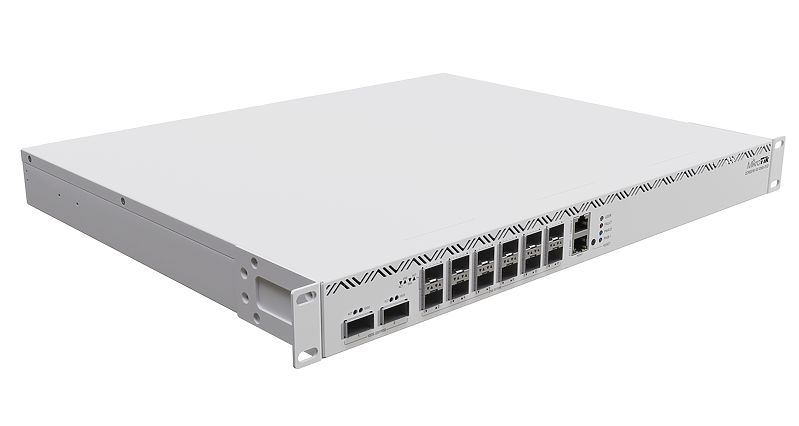
CCR2216-1G-12XS-2XQ
The new MikroTik flagship with the power of a whole fleet. Unleash the power of 100 Gigabit networking with L3 Hardware Offloading! This router can be a handy drop-in upgrade for existing CCR1072 setups. See the CCR2216-1G-12XS-2XQ product page for full specifications and brochures.
Safety Warnings
- Before you work on any equipment, be aware of the hazards involved with electrical circuitry, and be familiar with standard practices for preventing accidents.
- Ultimate disposal of this product should be handled according to all national laws and regulations.
- The Installation of the equipment must comply with local and national electrical codes.
- This unit is intended to be installed in the rackmount. Please read the mounting instructions carefully before beginning installation. Failure to use the correct hardware or to follow the correct procedures could result in a hazardous situation for people and damage to the system.
- Read the installation instructions before connecting the system to the power source.
- It is the customer's responsibility to follow local country regulations, including operation within legal frequency channels, output power, cabling requirements, and Dynamic Frequency Selection (DFS) requirements. All MikroTik devices must be professionally installed.
First use
- Connect your PC to the MGMT/ETH/BOOT labeled port or the first Ethernet port;
- Connect the device to a power source;
- Configure the IP settings of your network card to
192.168.88.2/24; - Configuration should be made using WebFig in a web browser or the WinBox configuration tool https://mt.lv/winbox. Multiple configuration methods are available to ensure accessibility;
- Open
192.168.88.1in a web browser to start setup. If the IP address is unavailable, use WinBox and choose the "Neighbors" tab to find the device. Proceed to connect using the MAC address. The username is "admin", and there is no password (or, for some models, check user and wireless passwords on the sticker); - For a manual update of the device, visit mikrotik.com, select your model, and locate the required packages in the "Downloads" section;
- Upload downloaded packages to the WebFig or WinBox "Files" menu and reboot the device;
- By upgrading your RouterOS software to the latest version, you can ensure optimal performance, stability, and security updates;
- Set up your router password.
Powering
The device accepts powering from two redundant power supplies, each accepts 100-240 V AC power. You can use either, or both at the same time. Up to 128 W power consumption.
Extension slots and ports
- Product code CCR2216-1G-12XS-2XQ
- CPU AL73400 2 GHz
- CPU architecture ARM 64bit
- CPU core count 16
- Size of RAM 16 GB
- RAM type DDR4
- Storage 128 MB, NAND
- Number of 1G Ethernet ports 1
- Number of 25G SFP28 ports 12
- Number of 100G QSFP28 ports 2
- Number of M.2 SATA slots 2
- Operating system RouterOS (License level 6)
- Switch chip model 98DX8525
- Switch connection to CPU 4x25 Gbps
- Dimensions 443 x 367 x 44 mm
- Operating temperature -20°C to +60°C
- 100G QSFP28 supported speeds: 1x 100G; 2x 50G; 1x 50G; 1x 40G; 4x 25G; 4x 10G; 4x 1G. Not supported: 2x 40G
- 25G SFP28 supported speeds: 1x 25G; 1x 10G; 1x 2.5G; 1x 1G. Not supported: 1x 5G
CCR2216-1G-12XS-2XQ has SATA3 connections to the two M.2 slots. Recommended are SATA3 M.2 2280mm B+M key SSD disks with no capacity limitations.
Mounting
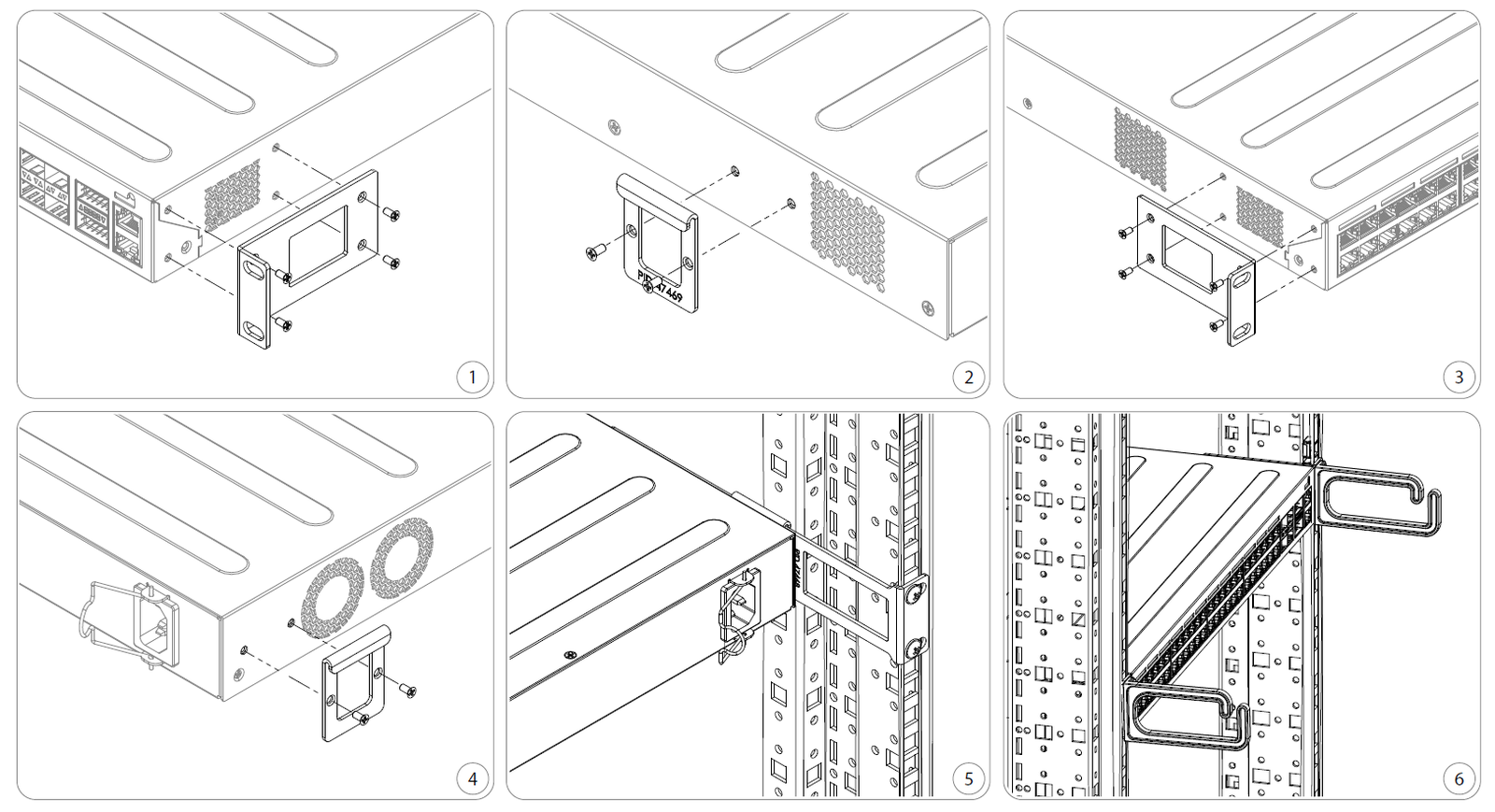
The device is designed to use indoors and it can be mounted in a rackmount enclosure using provided rack mounts, or it can be placed on the desktop. Use a Phillips screwdriver to attach rackmount ears on both sides of the device and for both sides of the back of the device if designated use is for rackmount enclosure:
- Attach the bracket to the front right side.
- Attach the rear right bracket.
- Attach the bracket to the left front side.
- Attach the rear left bracket.
- Attach long brackets to the rackmount and install the device with the holes so that the device fits conveniently.
- If needed, install cable management brackets.
Please ensure the placement of the device in a dry and ventilated environment. Ingress rating IP20. We recommend Cat6 cables for our devices. The mounting and configuration of this device should be done by a qualified person.
Configuration
Full documentation for RouterOS is available at: https://mt.lv/help You can configure the device using WebFig in a web browser or the "WinBox" configuration tool https://mt.lv/winbox. Multiple configuration methods are available to ensure accessibility.
To start setup, open 192.168.88.1 in a web browser to start setup. If the IP address is unavailable, use WinBox and choose the "Neighbors" tab to find the device. Proceed to connect using the MAC address. The username is "admin", and there is no password (or, for some models, check user and wireless passwords on the sticker).
The device is equipped with an RJ45 serial port, set by default to 115200 bit/s, 8 data bits, 1 stop bit, no parity. For recovery purposes, it is possible to reinstall the device from the network, see the Reset button.
Marvell Prestera switch chip features user manual
Buttons and jumpers
Reset button:
- Hold this button during boot time until the USER LED light starts flashing, release the button to reset RouterOS configuration.
- Hold the Reset button and power on your device (wait until the "USER" LED is blinking then stable "On", and when the "USER" LED is "Off" - release the Reset button) - the device is booting in BOOTP mode to reinstall RouterOS using Netinstall. The MGMT/BOOT Ethernet port is used for the Netinstall process. See RouterOS documentation about using the Netinstall recovery utility.
Regardless of the above option used, the system will load the backup RouterBOOT loader if the button is pressed before power is applied to the device. Release the button before LED begins to flash, to only load backup RouterBOOT without resetting. This is useful for RouterBOOT debugging and recovery.
The Mode button is not functional by default but can be assigned any script in the menu /system routerboard mode-button
LEDs
The device has four LED lights. PWR1/2 indicates which power supply is being used. FAULT indicates a problem with the cooling fans. USER can be configured using the software.
Accessories
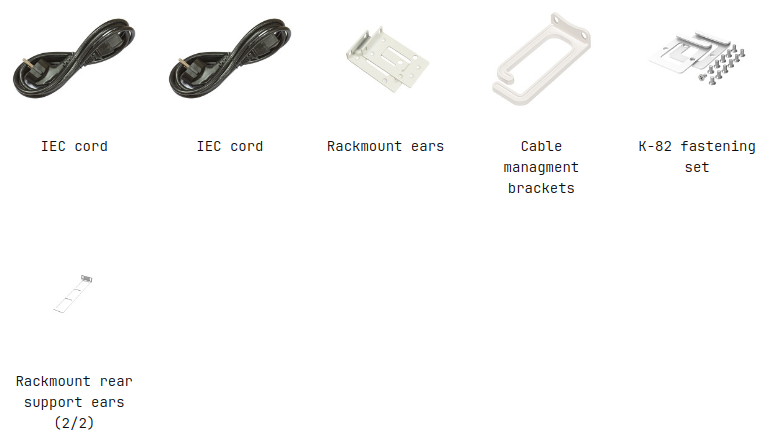
Two EU/US power cords; Rack Mount bracket Back Side R0; Rackmount Case x72 Side Bracket; Cable management for RMB R0; Screws and 2pcs Rack Mount bracket Back Side Mount R0.
Operating system support
The device supports RouterOS v7 and above. The specific factory-installed version is listed in /system resource. Other operating systems have not been tested.