Device mode
CLI reference:/system/device-mode
The device-mode limits access to specific configuration options. It protects the router and the network from attackers who gain unauthorized access and use the device as a gateway to attack other networks.
The available modes are advanced, home, basic and rose. New devices come with a mode configured at the factory: advanced (previously enterprise) on CCR and 1100 series devices, home on home routers and basic on other devices. Devices from before the factory modes were introduced use advanced, and upgrading RouterOS keeps it.
Check the current settings in the /system/device-mode menu.
[admin@MikroTik] > /system/device-mode/print
mode: advanced
allowed-versions: 7.13+,6.49.8+
flagged: no
flagging-enabled: yes
: yes
socks: yes
fetch: yes
pptp: yes
l2tp: yes
bandwidth-test: yes
traffic-gen: no
sniffer: yes
ipsec: yes
romon: yes
proxy: yes
: yes
smb: yes
email: yes
zerotier: yes
container: no
install-any-version: no
partitions: no
routerboard: no
attempt-count: 0
An authorized user can change the device-mode parameters, but physical access is required to approve the change. Confirm it with the reset or mode button on the device, or with a "cold reboot" — unplug the power. A regular reboot does not confirm the change; it cancels it. After confirmation, regardless of the method, the device reboots.
Check device mode in WinBox
Open System > Device Mode to inspect the restrictions:
- Mode and Allowed Versions identify the configured mode and permitted RouterOS versions.
- The per-tool fields show which operations are allowed. For example, check Scheduler, Fetch, or Email when one of those tools reports a device-mode restriction.
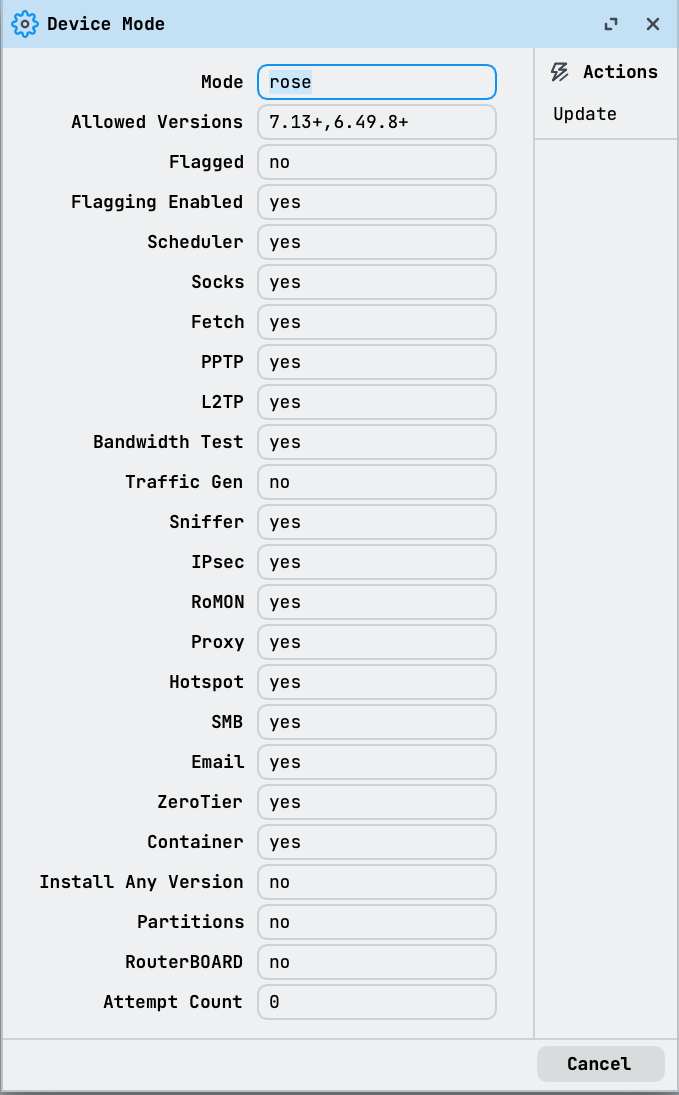
The screenshot shows a router with an existing rose configuration; it is not a factory default. The overview is read-only. The Update action starts a mode change, which requires physical confirmation and reboots the device (see the next section).
Change device-mode
Change the mode or individual features with the update command.
Change the mode to home:
[admin@MikroTik] > /system/device-mode/update mode=home
  update: turn off power or reboot by pressing reset or mode button in 5m to activate changes
If the update is not confirmed in time, the mode change is canceled. To cancel a pending update yourself, run /system/device-mode/update without parameters; it reports canceled previous update. An update with parameters while another update is pending cancels the pending one and is not applied itself; run it again to start a new update.
Some EOL products confirm mode changes only with a power cycle, not with a button press.
An attacker with access can prepare a device-mode change and leave it pending. The change activates on the next button press or power cycle, even when the administrator does not know what it is. To limit that risk, only three update attempts are allowed without a reset. Every update request with parameters increments the attempt-count counter, including refused ones; a request that cancels a pending update does not. When the counter reaches 3, further requests are refused and a reset window equal to the activation-timeout of that request opens. The counter resets after a confirmed update, or after a button press or power cycle inside the reset window. An expired request and a plain reboot do not reset it.
[admin@MikroTik] > /system/device-mode/update container=yes
  update: too many unsuccessful attempts, turn off power or reboot by pressing reset or mode button in 5m to reset attempt-count
A command that specifies mode replaces the entire device-mode configuration: all per-feature settings are lost except those given in the same command. The print config output shows only the settings that differ from the mode defaults.
[admin@MikroTik] > /system/device-mode/update mode=home email=yes fetch=yes
  update: turn off power or reboot by pressing reset or mode button in 5m to activate changes
-- reboot --
[admin@MikroTik] > /system/device-mode/print config
              mode: home
  allowed-versions: 7.13+,6.49.8+
             fetch: yes
             email: yes
[admin@MikroTik] > /system/device-mode/update mode=advanced sniffer=no
  update: turn off power or reboot by pressing reset or mode button in 5m to activate changes
-- reboot --
[admin@MikroTik] > /system/device-mode/print config
              mode: advanced
  allowed-versions: 7.13+,6.49.8+
           sniffer: no
The fetch and email overrides are gone, because the second mode change replaced them. A command that specifies only per-feature settings changes only those:
[admin@MikroTik] > /system/device-mode/update hotspot=no
update: turn off power or reboot by pressing reset or mode button in 5m to activate changes
-- reboot --
[admin@MikroTik] > /system/device-mode/print config
mode: advanced
allowed-versions: 7.13+,6.49.8+
sniffer: no
: no
A disabled feature rejects interactive commands:
[admin@MikroTik] > /system/device-mode/print config
mode: advanced
allowed-versions: 7.13+,6.49.8+
sniffer: no
: no
[admin@MikroTik] > /tool/sniffer/quick
failure: not allowed by device-mode
Configuration for a disabled feature can still be added; the entry is created disabled, with a comment that the device-mode does not allow it:
[admin@MikroTik] > /ip/hotspot/add interface=ether1
[admin@MikroTik] > /ip/hotspot/print
Flags: X - DISABLED
Columns: NAME, INTERFACE, PROFILE, IDLE-TIMEOUT
#   NAME      INTERFACE  PROFILE  IDLE-TIMEOUT
;;; inactivated, not allowed by device-mode
0 X hotspot1  ether1     default  5m
Configure device-mode with Netinstall or FlashFig
Netinstall and FlashFig can set device-mode, protected-routerboot and other settings when they provision a device.
See the Netinstall and FlashFig documentation for details.
Available device-mode modes
Four modes are available (advanced is the default); each disables a subset of features. No mode has all features enabled — some features must be enabled explicitly even in advanced mode. rose is similar to advanced, intended for RDS and similar devices with broad disk use and factory container support. The table lists what each feature controls. traffic-gen, container, partitions and routerboard are disabled in every mode unless enabled explicitly.
| Feature / Property | Actions/unavailable menus | Home | Basic | Advanced | ROSE |
|---|---|---|---|---|---|
| Bandwidth Test | /tool/bandwidth-test, /tool/bandwidth-server, /tool/speed-test | No | No | Yes | Yes |
| Containers | All container functionality. | No | No | No | Yes |
/tool/e-mail | No | Yes | Yes | Yes | |
| Fetch | /tool/fetch | No | Yes | Yes | Yes |
| Hotspot | /ip/hotspot | No | No | Yes | Yes |
| Install Any Version | RouterOS will no longer allow installation of versions outside the allowed-versions list. | No | No | No | No |
| IPsec | /ip/ipsec | Yes | Yes | Yes | Yes |
| L2TP | /interface/l2tp-server, /interface/l2tp-client | Yes | Yes | Yes | Yes |
| Partitions | /partitions — does not allow changing the count of partitions. If your router is unable to boot, it will still be able to boot into your other partitions. No restriction for crash recovery. | No | No | No | No |
| PPTP | /interface/pptp-server, /interface/pptp-client | Yes | Yes | Yes | Yes |
| Proxy | /ip/proxy | No | No | Yes | Yes |
| RoMon | /tool/romon | No | Yes | Yes | Yes |
| Routerboard Settings | /system/routerboard/settings (except auto-upgrade option) | No | No | No | No |
| Scheduler | /system/scheduler | No | Yes | Yes | Yes |
| SMB | /ip/smb | Yes | Yes | Yes | Yes |
| Sniffer | /tool/sniffer | No | Yes | Yes | Yes |
| SOCKS Proxy | /ip/socks | No | No | Yes | Yes |
| Traffic Generator | /tool/traffic-generator, /tool/flood-ping, /tool/ping-speed | No | No | No | No |
| ZeroTier | /zerotier | No | No | Yes | Yes |
Each feature controlled by device-mode can be enabled or disabled individually.
For example, with scheduler disabled, /system/scheduler cannot perform any action. If the device runs in home mode but your setup needs zerotier, run /system/device-mode/update zerotier=yes and confirm it with physical access to the device. On dual-boot devices, device-mode restricts the SwOS/RouterOS transition; enable it with /system/device-mode/update routerboard=yes.
Allowed versions
The allowed-versions parameter lists the RouterOS versions MikroTik considers secure, without serious vulnerabilities that an attacker could exploit.
The list works as a separate protection layer, independent of the installed version, to prevent an attacker from downgrading step by step to a known vulnerable release. An upgrade to a release with a newer allowed-versions list overwrites the old one; a downgrade leaves the list unchanged. The list is ignored when install-any-version is enabled.
Flagged status
RouterOS analyzes the whole configuration at startup for signs of unauthorized access. If it finds suspicious configuration, the device disables it and sets flagged to yes, which enforces additional limitations.
[admin@MikroTik] > /system/device-mode/print
     mode: advanced
  flagged: yes
...
In the flagged state, the current configuration keeps working, but these actions are not possible:
- bandwidth-test, traffic-generator and sniffer
- configuration actions that enable or create entries (disabling or deleting them still works) in system scheduler, SOCKS proxy, PPTP, L2TP, IPsec, proxy and SMB.
Attempting them returns an error:
[admin@MikroTik] > /tool/sniffer/quick
failure: configuration flagged, check all router configuration for unauthorized changes and update device-mode
[admin@MikroTik] > /interface/l2tp-client/add connect-to=192.0.2.1 user=user1
failure: configuration flagged, check all router configuration for unauthorized changes and update device-mode
To exit the flagged state, run /system/device-mode/update flagged=no and confirm it with a button press or a power cycle: cut the power, or do a hard reboot of the virtual machine.
Although the system has disabled any malicious-looking rules that triggered the flagged state, inspect all of your configuration for other unknown entries before exiting the flagged state. If your system has been flagged, assume that it has been compromised and audit all settings before re-enabling it for use. After the audit, change all system passwords and upgrade to the latest RouterOS version.