Pair Claire with Home Assistant on hAP be³ Media
Pair your Claire or Claire Lite air quality sensor with Home Assistant on hAP be³ Media to view sensor readings on your phone or in a web browser, and use them in automations and alerts.
Claire connects over Matter over Thread. The router's built-in Thread radio provides the wireless connection, and the homeassistant-thread app includes Home Assistant, the OpenThread Border Router, and the Matter server.
In earlier RouterOS versions, this app is named ha-otbr-matter. Select the Thread-enabled app available in your router's catalog.
Before you begin
Out of the box, hAP be³ Media has Apps configured, the required packages installed, and container support enabled in device-mode. You can proceed directly to the Home Assistant app installation.
Prepare the following:
- A hAP be³ Media with internet access.
- A USB drive connected to the router for app storage. If the drive is not ready for use in RouterOS, follow the disk setup instructions.
- A powered Claire or Claire Lite within range of the router.
- A phone with the Home Assistant Companion app installed, Bluetooth enabled, and access to the router's Wi-Fi network.
Connect your computer and phone to the router's local network for setup and pairing.
If you have reinstalled RouterOS or reset the unit, check that the container package is installed and container support is enabled in device-mode. Restore these settings if necessary. Physical access to the router is required to confirm a device-mode change. Run the Apps setup wizard if the app configuration is missing.
Install the Home Assistant app
-
Connect to hAP be³ Media with WinBox or WebFig and open the App menu.
-
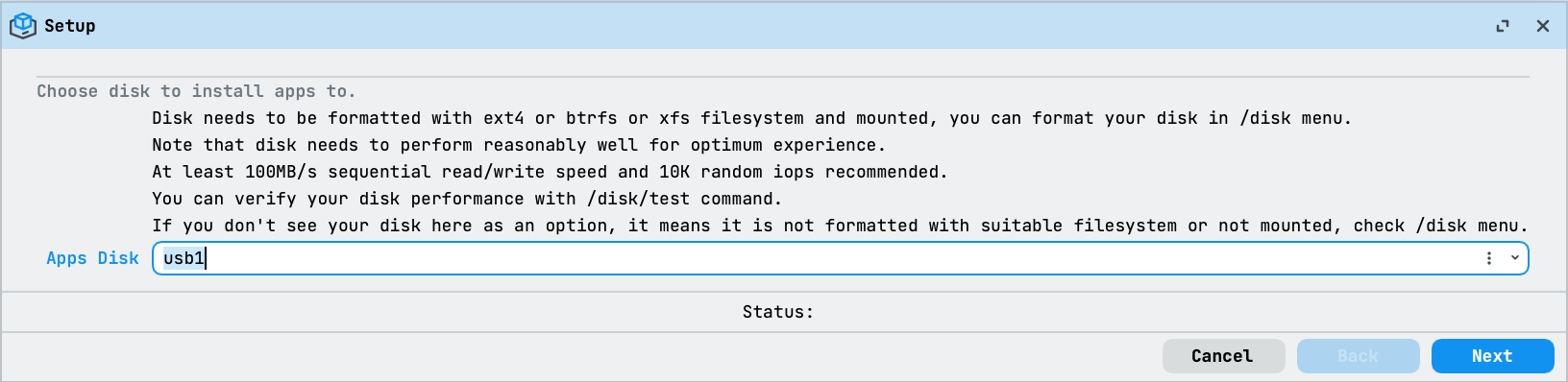
If you have not configured app storage and networking, select Setup. Choose the USB drive, your LAN bridge, and the router's LAN IP address. Follow the Apps setup wizard for details.
-
Select
homeassistant-thread, orha-otbr-matterin earlier RouterOS versions, and select Enable.
-
Wait for the app to download, extract, and start. The app contains several container images, so installation can take several minutes.
-
Open the app's UI URL link to access Home Assistant.
The Apps system configures the containers and their networking automatically.
Set up Home Assistant on your phone
- On the Home Assistant welcome page, create your administrator account and complete the initial setup.
- Open the Home Assistant Companion app on your phone.
- Select your Home Assistant instance. If it is not discovered automatically, enter the same URL you opened from UI URL.
- Sign in with the username and password you created in Home Assistant.
- Allow the permissions requested for pairing, including Bluetooth and camera access.
Use the Companion app on your phone to pair Claire. After pairing, you can view its readings from either the Companion app or the Home Assistant web interface.
Pair Claire
- In the Home Assistant Companion app, open Settings → Devices & services and select Matter.
- Select Add device. If asked whether the device is already in use, select No, it's new for an unpaired Claire. Follow the prompts to open the QR code scanner.
- On Claire, hold the side button for 3 seconds to open the settings menu.
- Use short button presses to highlight Pairing code.
- Hold the button for 1 second to display the Matter pairing QR code.
- Scan the QR code on Claire's screen with the Companion app and wait for pairing to finish. Keep your phone near Claire during setup.
- Give the device a name and assign it to an area, such as Living room.
Claire returns to its main screen after 30 seconds without button input. If the QR code disappears before you scan it, open Pairing code again.
View sensor readings
In Home Assistant, open Settings → Devices & services → Matter and select Claire. Its device page shows the available sensor readings. The sensors shown depend on your Claire model.
You can add the readings to a dashboard or create automations, such as a notification when CO₂ rises above a threshold you choose. Keep Claire powered and within Thread coverage so Home Assistant can receive updates.
If pairing does not finish
Phone and QR code
- Pair from the Home Assistant Companion app on your phone. Use the web interface to view readings after pairing.
- Enable Bluetooth and allow the app's camera, Bluetooth or nearby-device, and local-network permissions when requested. Keep the phone near Claire during pairing.
- If an iPhone repeatedly refuses to pair, restart the iPhone, reopen the Companion app, and try again.
- If the QR code disappears, open Pairing code on Claire again. Its screen returns to the main view after 30 seconds without button input.
Home Assistant and Thread
- Confirm the
homeassistant-threadapp, orha-otbr-matterin earlier RouterOS versions, has finished starting and its UI URL opens. - Keep the phone on the router's local Wi-Fi network. A guest network with client isolation or a VPN on the phone can prevent local discovery and communication, even if the Home Assistant web page opens. Disconnect the phone's VPN and use the main LAN for pairing.
- Matter uses local IPv6 and multicast discovery. If you have customized the router's network or firewall configuration, check that IPv6 and the required local communication between Home Assistant, the phone, and the Thread border router are allowed.
- Check Settings → Devices & services in Home Assistant for the Matter, Thread, and OpenThread Border Router integrations. Resolve any reported setup errors before retrying.
- If the phone reports that a Thread border router is required, check the Thread integration and confirm the hAP be³ Media Thread network is available. If you have several Thread networks, check which one is preferred. Complete any Thread credential transfer or synchronization prompts in Home Assistant and the Companion app before retrying.
- Move Claire closer to hAP be³ Media during setup. Keep it within Thread coverage after pairing so readings remain available.
Existing pairing and sensor updates
- If Claire is paired to another home and you want to replace that pairing, use Unpairing in Claire's settings menu before repeating these steps. This removes its existing pairing.
- Allow up to 10 minutes for Claire's sensors to stabilize after power-on. Readings update at different intervals: CO₂ updates every 30 seconds, and particulate matter every 5 minutes. A reading remaining unchanged for a short time does not necessarily indicate a connection problem.
For button controls and unpairing instructions, see the Claire hardware manual.