Interworking for WiFi6
Interworking
Interworking is the occurrence of two or more things working together. For a better Wireless network experience, information about the network must be exchanged between Access Points and Wireless client devices. The information that can be found in basic Wireless beacons and probe requests is limited. For this reason, the IEEE 802.11u™-2011 (Interworking with External Networks) standard was created that specifies how devices should exchange information between each other. The Network discovery and Access Point selection process can be enhanced with the interworking service. Wireless client devices can have more criteria upon which they can choose the network with which to associate.
Hotspot 2.0
Hotspot 2.0 is a specification developed and owned by the Wi-Fi Alliance. It was designed to enable a more cellular-like experience when connecting to Wi-Fi networks. In an attempt to increase Wireless network security, Hotspot 2.0 access points use mandatory WPA2 authentication. Hotspot 2.0 relies on Interworking and adds some of its own properties and procedures.
Interworking profiles are implemented according to IEEE 802.11u and Hotspot 2.0 Release 1 specifications.
This manual page describes the configuration for the wifi-qcom package devices.
Configuration Properties
There are two ways you can go about configuring Interworking.
You can configure it as a "profile" in the "WiFi>Interworking" tab and apply it onto the interface in the WiFi>WiFi tab, by selecting the wifi interface, and then choosing the profile in the "Interworking" tab, "Interworking" field.
Alternatively, you can configure it directly in the interface settings, without using "profiles", by selecting the wifi interface in the WiFi>WiFi tab, in the "Interworking" tab.
Sub-menu: /interface/wifi/interworking
Information elements in beacon and probe response
Some information can be added to beacon and probe response packets with an Interworking element. The following parameters of an Interworking element can be configured:
| Property | Description |
|---|---|
| esr (yes | no; Default: no) | Emergency services reachable (ESR). Set to yes in order to indicate that emergency services are reachable through the access point. |
| hessid (MAC address; Default: ) | Homogenous extended service set identifier (HESSID). Devices that provide access to the same external networks are in one homogenous extended service set. This service set can be identified by HESSID that is the same on all access points in this set. The 6-byte value of HESSID is represented as a MAC address. It should be globally unique, therefore it is advised to use one of the MAC addresses of an access point in the service set. |
| internet (yes | no; Default: yes) | Whether the internet is available through this connection or not. This information is included in the Interworking element. |
| network-type (emergency-only | personal-device | private | private-with-guest | public-chargeable | public-free | test | wildcard; Default: wildcard) | Information about network access type.
|
| uesa (yes | no; Default: no) | Unauthenticated emergency service accessible (UESA).
|
| venue (venue; Default: unspecified) | Specify the venue in which the Access Point is located. Choose the value from the available ones. Some examples:venue=business-bankvenue=mercantile-shopping-mallvenue=educational-university-or-college``` |
ANQP elements
Access network query protocol (ANQP). Not all necessary information is included in probe response and beacon frames. For a client device to get more information before choosing an access point to associate with, ANQP is used. The Access Point can have stored information in multiple ANQP elements. The client device will use ANQP to query only for the information it is interested in. This reduces the time needed before association.
| Property | Description |
|---|---|
| 3gpp-raw (octet string in hex; Default: ) | Cellular network advertisement information - country and network codes. This helps Hotspot 2.0 clients in the selection of an Access Point to access 3GPP network. Please see 3GPP TS 24.302. (Annex H) for a format of this field. This value is sent in ANQP response if queried. |
| 3gpp-info(number/number; Default: ) | Cellular network advertisement information - country and network codes. This helps Hotspot 2.0 clients in the selection of an Access Point to access 3GPP network. Written as "mcc/mnc". Multiple mcc/mnc pairs can be defined, by separating them with a comma. |
authentication-types (dns-redirection:url | https-redirection:url | online-enrollment:url | terms-and-conditions:url; Default: ) | This property is only effective when asra is set to yes. Value of url is optional and not needed if dns-redirection or online-enrollment is selected. To set the value of url to empty string use double quotes. For example:authentication-types=online-enrollment:"" |
| connection-capabilities (number:number:closed|open|unknown; Default: ) | This option allows providing information about the allowed IP protocols and ports. This information can be provided in ANQP response. The first number represents the IP protocol number, the second number represents a port number.
connection-capabilities=6:80:open,17:5060:closedSetting such a value on an Access Point informs the Wireless client, which is connecting to the Access Point, that HTTP (6 - TCP, 80 - HTTP) is allowed and VoIP (17 - UDP; 5060 - VoIP) is not allowed. This property does not restrict or allow usage of these protocols and ports, it only gives information to the station device which is connecting to the Access Point. |
| domain-names (list of strings; Default: ) | None or more fully qualified domain names (FQDN) that indicate the entity operating the Hotspot. A station that is connecting to the Access Point can request this ANQP property and check if there is a suffix match with any of the domain names it has credentials to. |
| ipv4-availability (double-nated | not-available | port-restricted | port-restricted-double-nated | port-restricted-single-nated | public | single-nated | unknown; Default: not-available) | Information about what IPv4 address and access are available.
|
| ipv6-availability (available | not-available | unknown; Default: not-available) | Information about what IPv6 address and access are available.
|
| realms (string:eap-sim|eap-aka|eap-tls|not-specified; Default: ) | Information about supported realms and the corresponding EAP method.realms=example.com:eap-tls,foo.ba:not-specified |
| realms-raw (octet string in hex; Default: ) | Set NAI Realm ANQP-element manually. |
| roaming-ois (octet string in hex; Default: ) | Organization identifier (OI) usually is a 24-bit unique identifier like organizationally unique identifier (OUI) or company identifier (CID). In some cases, OI is longer for example OUI-36. A subscription service provider (SSP) can be specified by its OI. roaming-ois property can contain zero or more SSP OIs whose networks are accessible via this AP. Length of OI should be specified before OI itself. For example, to set E4-8D-8C and 6C-3B-6B: roaming-ois=03E48D8C036C3B6B |
| venue-names (string:lang; Default: ) | Venue name can be used to provide additional info on the venue. It can help the client to choose a proper Access Point. The Venue-names parameter consists of zero or more pairs that contain Venue Name and Language Code: venue-names=CoffeeShop:eng,TiendaDeCafe:esThe Language Code field value is a two or three-character language code selected from ISO-639. |
Realms raw
realms-raw - list of strings with hex values. Each string specifies the contents of "NAI Realm Tuple", excluding the "NAI Realm Data Field Length" field.
Each hex encoded string must consist of the following fields:
- NAI Realm Encoding (1 byte)
- NAI Realm Length (1 byte)
- NAI Realm (variable)
- EAP Method Count (1 byte)
- EAP Method Tuples (variable)
For example, the value "00045465737401020d00" decodes as:
- NAI Realm Encoding: 0 (rfc4282)
- NAI Realm Length: 4
- NAI Realm: Test
- EAP Method Count: 1
- EAP Method Length: 2
- EAP Method Tuple: TLS, no EAP method parameters
Note that setting "realms-raw=00045465737401020d00" produces the same advertisement contents as setting "realms=Test:eap-tls".
Refer to 802.11-2016, section 9.4.5.10 for full NAI Realm encoding.
Hotspot 2.0 ANQP elements
Hotspot 2.0 specification introduced some additional ANQP elements. These elements use an ANQP vendor specific element ID. Here are the available properties to change these elements.
| Property | Description |
|---|---|
| hotspot20 (yes | no; Default: yes) | Indicates Hotspot 2.0 capability of the Access Point. |
| hotspot20-dgaf (yes | no; Default: yes) | Downstream Group-Addressed Forwarding (DGAF). Sets value of DGAF bit to indicate whether multicast and broadcast frames to clients are disabled or enabled.
multicast-helper=full. |
| operational-classes (list of numbers; Default: ) | Information about other available bands of the same ESS. |
| operator-names (string:lang; Default: ) | Set operator name. Language must be specified for each operator name entry. Operator-names parameter consists of zero or more duple that contain Operator Name and Language Code: operator-names=BestOperator:eng,MejorOperador:esThe Language Code field value is a two or three-character 8 language code selected from ISO-639. |
| wan-at-capacity (yes | no; Default: no) | Whether the Access Point or the network is at its max capacity. If set to yes no additional mobile devices will be permitted to associate to the AP. |
| wan-downlink (number; Default: 0) | The downlink speed of the WAN connection set in kbps. If the downlink speed is not known, set to 0. |
| wan-downlink-load (number; Default: 0) | The downlink load of the WAN connection measured over wan-measurement-duration. Values from 0 to 255.
|
| wan-measurement-duration (number; Default: 0) | Duration during which wan-downlink-load and wan-uplink-load are measured. Value is a numeric value from 0 to 65535 representing tenths of seconds.
|
| wan-status (down | reserved | test | up; Default: reserved) | Information about the status of the Access Point's WAN connection. The value reserved is not used. |
| wan-symmetric (yes | no; Default: no) | Whether the WAN link is symmetric (upload and download speeds are the same) or not. |
| wan-uplink (number; Default: 0) | The uplink speed of the WAN connection set in kbps. If the uplink speed is not known, set to 0. |
| wan-uplink-load (number; Default: 0) | The uplink load of the WAN connection measured over wan-measurement-duration. Values from 0 to 255.
|
Other Properties
| Property | Description |
|---|---|
| comment (string; Default: ) | Short description of the profile |
| name (string; Default: ) | Name of the Interworking profile. |
Configuration guide using native RadSec and Orion Wifi
This guide describes how to set up your MikroTik devices so you can use them with RadSec proxy and Orion Wifi, though the main configuration steps remain the same and will work with different providers as well.
It is important to set up a secure RADIUS connection between the wireless LAN controller and Orion Wifi.
Orion Wifi uses RADIUS over TLS (RadSec) to ensure end-to-end encryption of AAA traffic.
Import RadSec certificates
In this step, we will import RadSec certificates you should have downloaded from the Orion (from the Orion portal, in the "Manage" tab, under "RadSec Certificates" > "Download Orion Certificates" > "Generate Client Certificate Bundle").
- Drag and drop certificates into WinBox or use FTP/SFTP to upload them into the router instead.
Ensure that you have all 3 certificate files in the file system (with the /file/print command):
[admin@MikroTik] > /file/print
Columns: NAME, TYPE, SIZE, LAST-MODIFIED
# NAME                      TYPE       SIZE      LAST-MODIFIED
0 bw.radsec.cacert.pem      .pem file  716       2025-08-19 15:01:56
1 key.pem                   .pem file  227       2025-08-19 15:01:54
2 cert.pem                  .pem file  895       2025-08-19 15:01:54
- Import certificate files 1 by 1.
Start with the RadSec CA certificate:
/certificate/import file-name=bw.radsec.cacert.pem passphrase=""
Then, import client certificate (which the AP will use for RadSec connection):
/certificate/import file-name=cert.pem passphrase=""
Lastly, import client certificate's key:
/certificate/import file-name=key.pem passphrase=""
Once certificates are imported, they should look like this (CA RadSec certificate should be trusted, while client/AP certificate should be flagged "Trusted" and "Private-Key"):
[admin@MikroTik] > /certificate/print
Flags: K - PRIVATE-KEY; T - TRUSTED
Columns: NAME, COMMON-NAME, SUBJECT-ALT-NAME, SKID
#    NAME                    COMMON-NAME                                      SUBJECT-ALT-NAME                                     SKID
0  T bw.radsec.cacert.pem_0  Buttonwood Radsec CA                                                                                  XXYYXXYYXXYYXXYYXXYYXXYYXXYYXXYYXXYYXXY
1 KT cert.pem_0              xxxxx.yyyyyyyyyyyyyyyyyyy.orion.area120.com  DNS:xxxxx.yyyyyyyyyyyyyyyyyyy.orion.area120.com
Configure Radius client
Configure RadSec client:
/radius
add address=216.239.32.91 certificate=cert.pem_0 protocol=radsec radsec-timeout=1s500ms service=
Setup WiFi interfaces
- Create a wireless security profile that would perform 802.1x authentication:
/interface/wifi/security
add authentication-types=wpa2-eap disabled=no eap-accounting=yes management-protection=allowed name=orion_password_profile wps=disable
- Configure interworking profile (hotspot 2.0):
/interface/wifi/interworking
add disabled=no domain-names=orion.area120.com hotspot20=yes hotspot20-dgaf=yes internet=yes ipv4-availability=public ipv6-availability=not-available name=interworking network-type=public-chargeable operator-names=Orion:eng \
    realms=orion.area120.com:eap-tls roaming-ois=f4f5e8f5f4,baa2D00100,baa2d00000 venue=business-unspecified venue-names=Orion:eng wan-downlink=50 wan-status=up wan-uplink=50
Pay special attention to "wan-downlink" and "wan-uplink", in this scenario the value of "50" is used as a placeholder, make sure to adjust the values according to your setup, some client devices use it to evaluate if they should join the network. Set “venue” – venue type, ”venue-names” and other attributes as applicable. “domain-names” should be of the hotspot 2.0 Operator.
- Configure SSID + apply security and interworking profiles to the interface:
/interface/wifi
set [ find default-name=wifi1 ] configuration.country=Latvia .mode=ap .ssid=Orion disabled=no interworking=interworking security=orion_password_profile
Make sure the correct country profile is configured. In this example, we are using “wifi1”, but the same command would work with other interfaces.
NAS-id that's used by Orion to differentiate networks is equal to the system identity. To adjust the nas-id, you can do "/system/identity/set name=exampleName".
Troubleshooting
To check the status of RADIUS messages, you can use the radius menu.
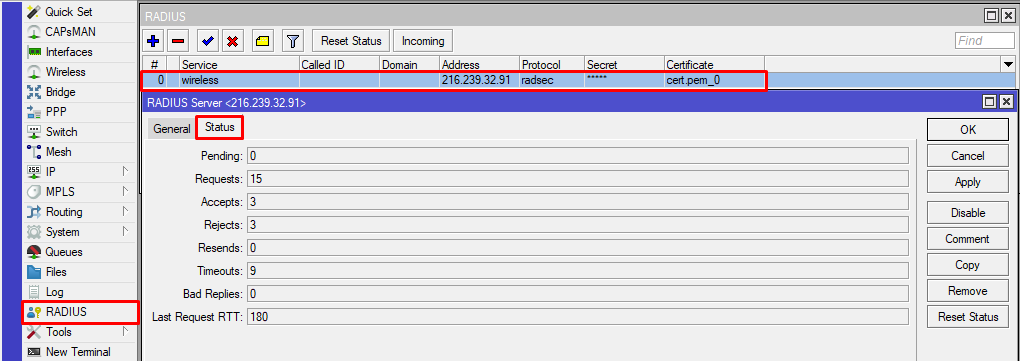
Or alternatively via the command line run "/radius/monitor X", X being the numerical ID, you can see the IDs with /radius/print.
For more information, additional logging can be configured under "/system/logging/add topics=radius,debug,packet". You can view results under "/log".
To view active wireless connections check the WiFi registration table (/interface/wifi/registration-table/print).