CHR: Licensing
Overview
Cloud Hosted Router (CHR) offers four license levels. Licenses are perpetual, meaning they are purchased once and can be used indefinitely. Perpetual licenses can also be transferred to another CHR instance if needed. CHR includes the full RouterOS feature set by default. However, it uses a different licensing model compared to other RouterOS editions.
CHR License Levels
CHR is a version of RouterOS designed to run as a virtual machine. It has four license levels, along with a Trial option that allows you to test any paid license level free of charge for 60 days.
A 60-day free Trial is available for all paid license levels. To obtain a Trial license, you must have a registered account on MikroTik.com, as all CHR license management is handled through the MikroTik account system.
Perpetual licenses are lifetime licenses — purchase once and use indefinitely. These licenses can also be transferred to another CHR instance if needed.
The license is tied directly to the CHR system ID.
A running CHR instance periodically connects to the MikroTik account server to renew its license status. The system displays the deadline by which the renewal must occur. If the CHR instance cannot renew its license before the deadline, it behaves as if the Trial period has expired, and upgrading RouterOS to newer versions is no longer allowed.
To activate a Trial license on a CHR instance running the Free license level, you must manually run the /system/license/renew command and register the CHR instance to your MikroTik.com account.
| License | Speed Limit | Price | Description |
|---|---|---|---|
| Free | 1Mbit | FREE | The Free license level allows CHR to run indefinitely with a 1 Mbps upload limit per interface. All other RouterOS features are available without restrictions. To get started, download the disk image and deploy it as a virtual machine or cloud instance. |
| P1 (Perpetual-1) | 1Gbit | $45 | P1 (Perpetual-1) allows CHR to run indefinitely. It is limited to 1 Gbps upload per interface. All other RouterOS features are available without restrictions. It is possible to upgrade from P1 to P10 or P-Unlimited. When an upgrade is purchased at full price, the previous license becomes available again in your MikroTik account. |
| P10 (Perpetual-10) | 10Gbit | $95 | P10 (Perpetual-10) allows CHR to run indefinitely. It is limited to 10 Gbps upload per interface. All other RouterOS features are available without restrictions. P10 can be upgraded to P-Unlimited. When an upgrade is purchased at full price, the previous license becomes available again in your MikroTik account. |
| P-Unlimited | Unlimited | $250 | P-Unlimited (Perpetual-Unlimited) allows CHR to run indefinitely. It is the highest-tier license and has no enforced limitations. |
| 60-day Trial | FREE | In addition to the Free license, you can evaluate higher performance levels (P1, P10, or P-Unlimited) using a 60-day trial. A registered MikroTik.com account is required. From the CHR instance, you can request a trial license. This associates the instance System ID with your MikroTik account and enables license management and purchases. All paid license levels are available for trial. The trial period is valid for 60 days from activation. After expiration, the license status changes to "Limited upgrades", meaning RouterOS cannot be upgraded. Note: If you intend to purchase the license, complete the purchase before the trial expires. If no purchase is made within 2 months after expiration, the CHR instance is removed from your MikroTik account. In that case, a new CHR installation is required. To request a trial license, run the following command on the CHR instance: /system license renew You will be prompted to enter your MikroTik.com account username and password. (sensitive). |
If you want to upgrade a perpetual license to a higher level, transfer the existing license to another CHR instance first. This prevents the license from being lost during the upgrade process.
Licensing Notes
You can clone or copy a running CHR system, but cloned instances retain the original trial status. This means trial periods cannot be extended by creating copies. However, each system can still be licensed independently.
To start a new trial period, perform a fresh CHR installation and configure RouterOS again.
System ID and Cloning Considerations
When deploying multiple CHR instances from the same disk image, it is possible that some cloud providers (for example, Linode) may assign identical System IDs to multiple machines.
To prevent this, run the following command after the first boot and before requesting a trial license: /system/license/generate-new-id
This command must only be used on a CHR running the Free license level. Do not use it after a trial or paid license has been applied, as it may prevent further license updates.
Deploying Multiple Instances
To run multiple CHR instances:
- Download the CHR disk image from the MikroTik website.
- Create separate copies of the image for each virtual machine.
- Deploy each copy as a separate VM in your hypervisor or cloud platform.
Ensure that copies are created before booting or registering the image.
Perpetual License Requirements
A running CHR instance must periodically connect to the MikroTik account server to renew its license status. The system indicates the deadline by which this must occur.
Important: If the CHR instance cannot reach the account server before the deadline, it behaves as if the trial period has expired. In this state, you will not be able to upgrade RouterOS to a newer version or modify packages (e.g., enable or disable them).
IP/Cloud Requirement
IP/Cloud functionality requires a paid perpetual CHR license.
Expired License
An expired CHR license occurs when the CHR instance fails to renew its license before the "deadline-at" time by contacting the MikroTik server, or when the 60-day trial period has ended.
When a license expires, the router continues operating at the same tier, but software updates and package changes are disabled.
To license an expired CHR instance: You must use a Prepaid key.
Purchasing a Prepaid Key for CHR Licensing
What is a Prepaid Key?
A Prepaid Key is a license key that you purchase in advance for MikroTik products, including the Cloud Hosted Router (CHR). This key allows you to buy a license without immediately assigning it to a specific device.
Once you have a Prepaid Key, you can use it to upgrade an existing CHR System ID, or convert it into a full license key by providing the device's Software ID.
Purchasing a Prepaid Key
Follow these steps to purchase a Prepaid Key:
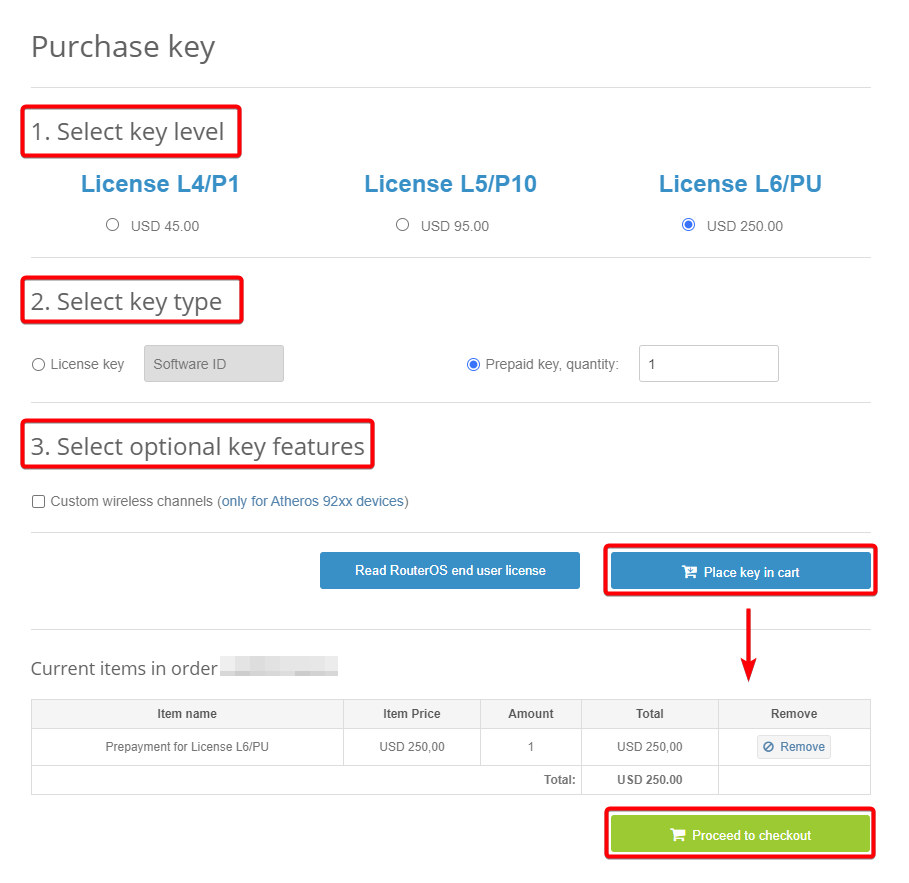
- Go to mikrotik.com and log in to your account.
- Navigate to the Purchase a RouterOS License Key section.
- Select the desired license level.
- Choose Prepaid key as the key type.
- Enter the quantity of prepaid keys you want to purchase.
- (Optional) Select any additional features you need for your key.
- Click Place key in the cart.
- Click Proceed to checkout to complete your purchase.
Completing Your Purchase
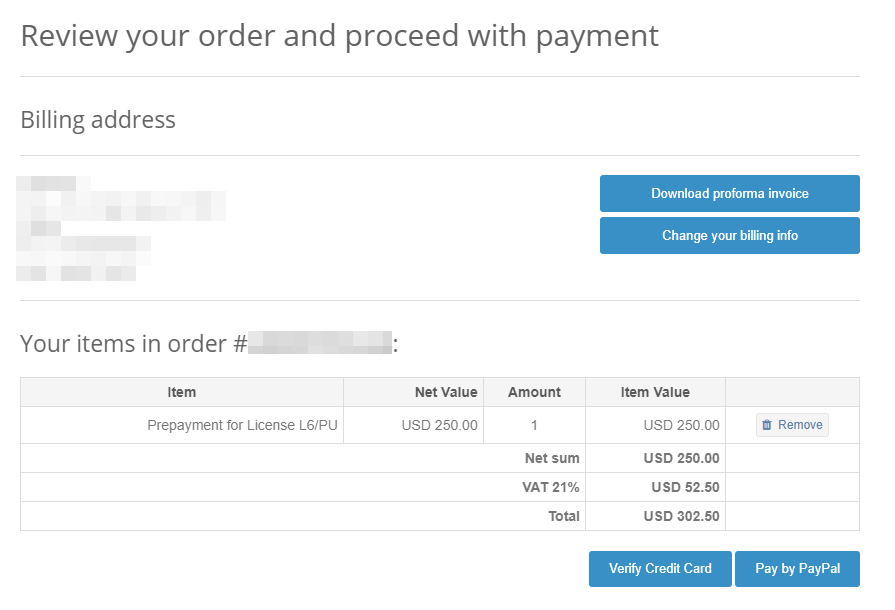
- Review your order details.
- Complete payment using Credit Card (CC) or PayPal.
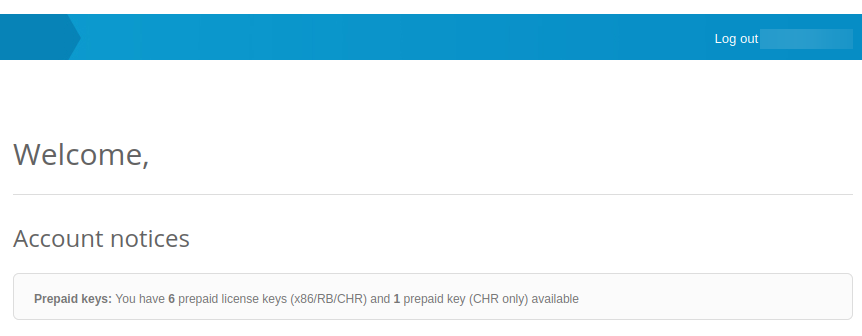
Congratulations! You have successfully purchased a Prepaid Key.
Registering a CHR Instance
When you first set up a Cloud Hosted Router (CHR) instance, it automatically receives a Free license. To acquire a higher license tier, you must register the CHR instance with your MikroTik account.
This registration associates the CHR System ID with your MikroTik.com account and activates a 60-day Trial period for the selected license level.
Starting a Trial License
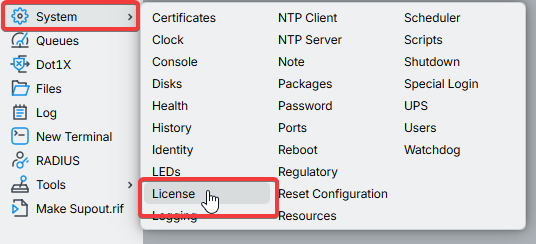
Using WinBox
- Open WinBox and connect to your CHR instance.
- Navigate to
/system/licenseand press Renew License.
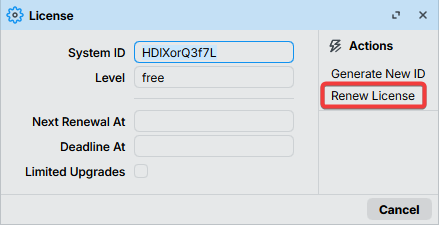
- Enter your MikroTik.com account credentials and select the desired license level.

- Confirm the upgrade.
Using the Command-Line Interface (CLI)
- Check your current license status:
[admin@MikroTik] > /system/license/print
  system-id: HDlXorQ3f7L
      level: free
- Run the renew command with your account credentials and desired level:
[admin@MikroTik] > /system/license/renew
account: mymikrotikcomaccount
password: *********************
level: p1
  status: done
- Verify the upgrade was successful:
[admin@MikroTik] > /system/license/print
         system-id: HDlXorQ3f7L
             level: p1
  limited-upgrades: no
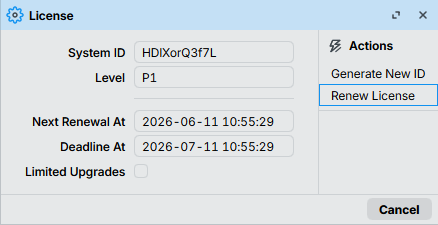
   next-renewal-at: 2026-06-11 10:55:29
       deadline-at: 2026-07-11 10:55:29
The output confirms that your license has been upgraded to P1, with the next renewal date and a Trial deadline displayed.
Verify CHR registration
- Go to mikrotik.com/client and log in with your mikrotik.com credentials.
- In the CHR LICENCES section, select All CHR keys.
- A list of your CHR instances and their corresponding licenses levels will be displayed.
After registration, the CHR System ID appears in the All CHR keys section of your MikroTik.com account.
Acquiring a Higher-Level Trial
It is not possible to upgrade the Trial license level on the same instance.
To try a higher license level, deploy a new CHR instance and select the desired Trial license level during registration.
Upgrading a Trial License to a Paid License
Payment and License Upgrade
To upgrade from a Trial license to a Paid license:
- Go to the MikroTik account server.
- In the CHR LICENCES section, select All CHR keys.
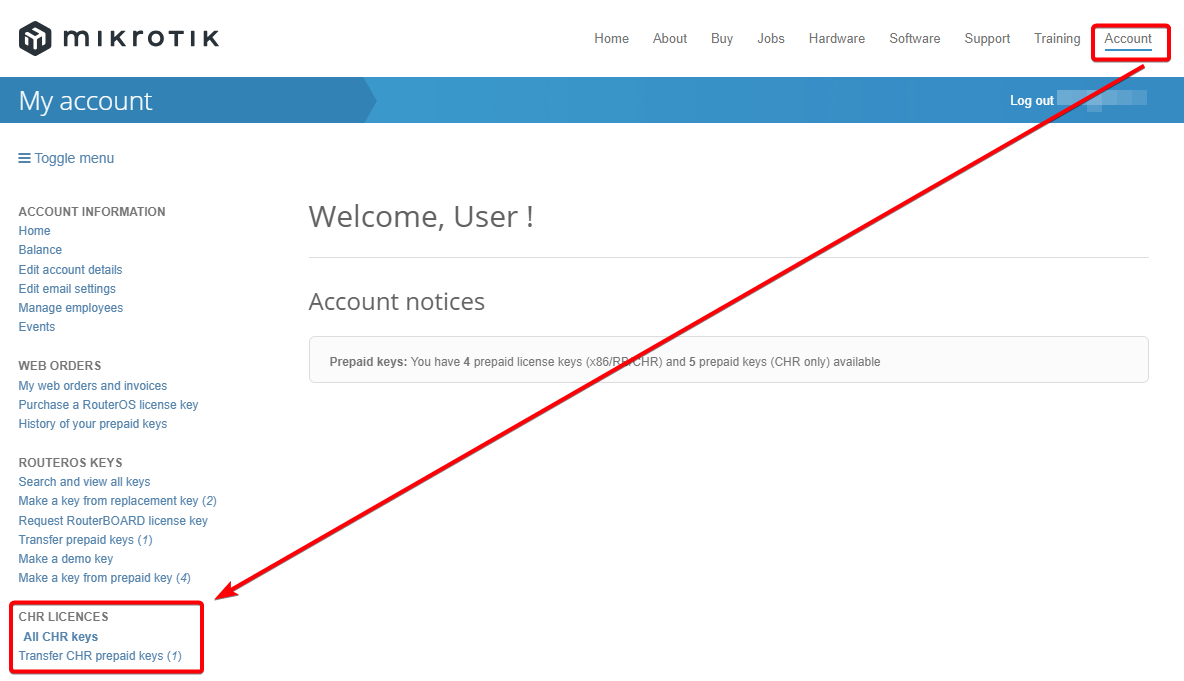
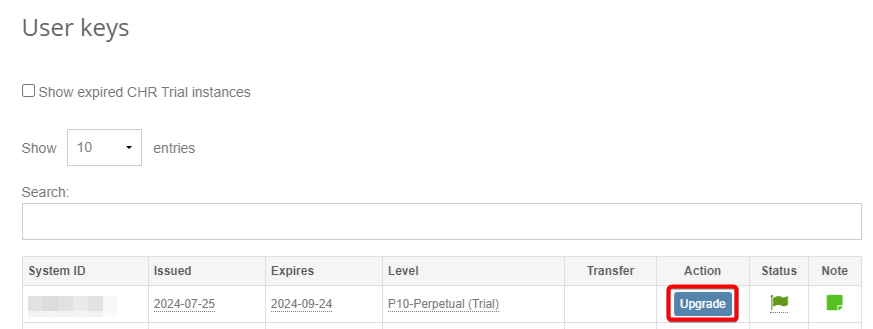
- A list of your CHR instances and their corresponding licenses levels will be displayed.
-
Click Upgrade next to the instance you want to upgrade.
-
Select the desired license level (this can differ from your current trial license level).
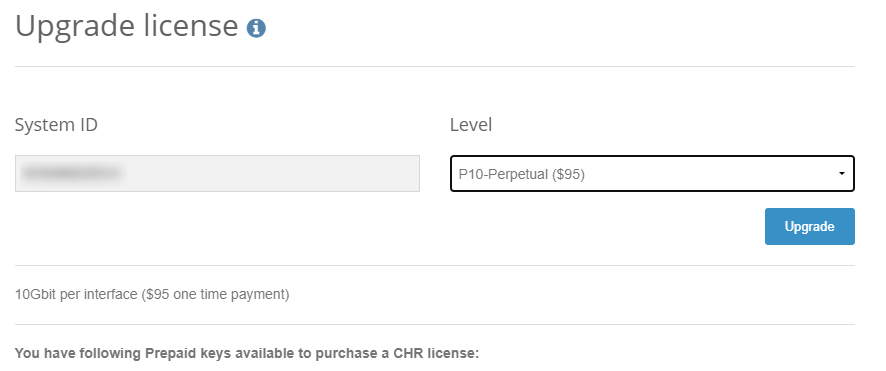
- Click Upgrade to confirm.
Using Prepaid Keys
If you have Prepaid keys available, you can use them to pay for CHR licenses:
- Click Pay using Prepaid key.
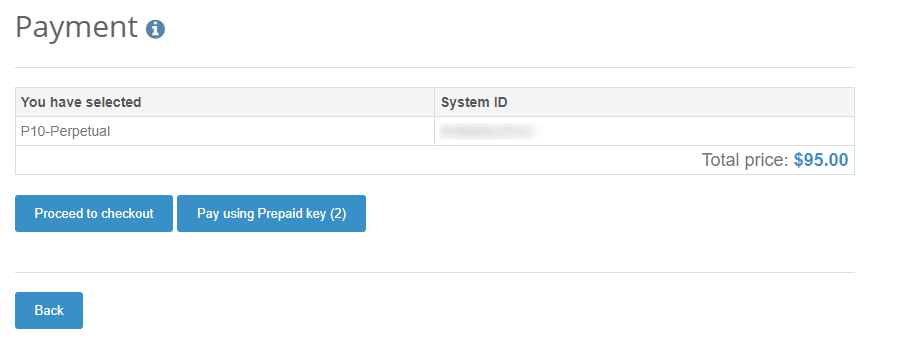
- If you don't have prepaid keys or prefer not to use them, click Proceed to checkout.
Payment Methods
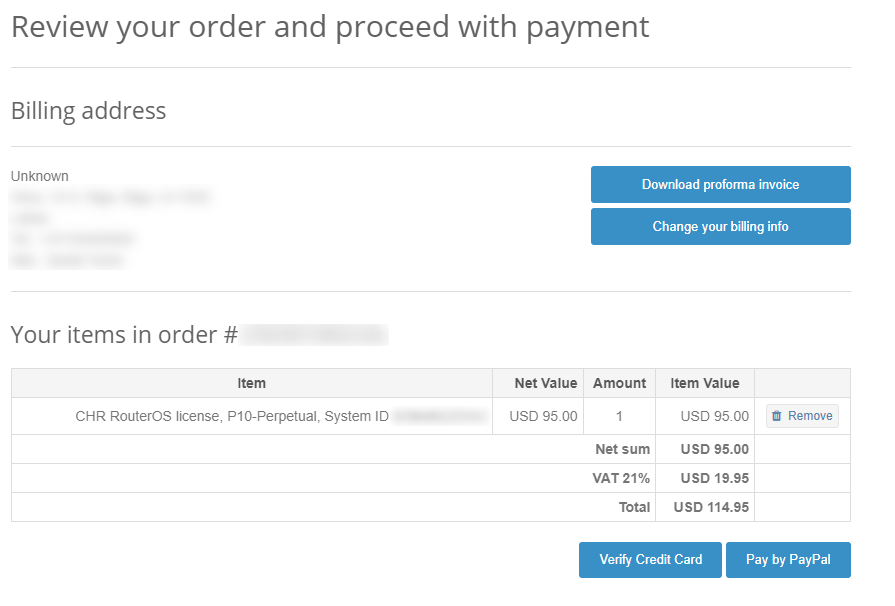
You can pay using either:
- Credit card (CC).
- PayPal.
Upgrading a Perpetual License Level
Prerequisites
Before starting the upgrade, ensure you have:
- A valid MikroTik.com account (username and password).
- The desired license level Prepaid key you want to acquire purchased.
If you want to upgrade a perpetual license to a higher level, transfer the existing license to another CHR instance first. This prevents the license from being lost during the upgrade process.
You can upgrade your Cloud Hosted Router (CHR) perpetual license to a higher level. The following upgrades are supported:
- P1 → P10 or P1 → P-Unlimited.
- P10 → P-Unlimited.
When you purchase an upgrade at full price, your previous license remains available for use on your account.
The P-Unlimited (perpetual-unlimited) license is the highest tier available. It allows CHR to run indefinitely with no enforced limitations.
Upgrading the Paid Perpetual CHR License Level
-
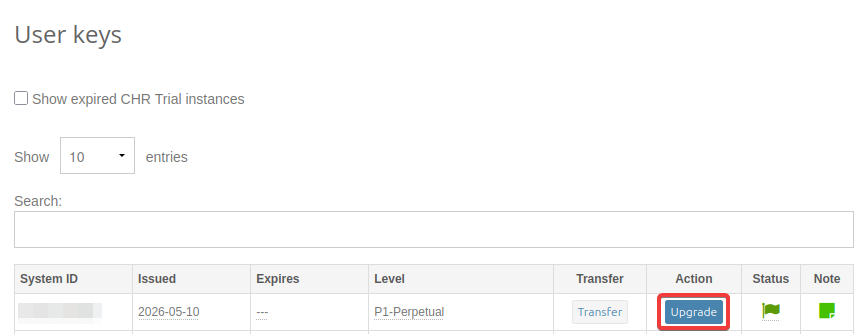
Log in to your MikroTik account and navigate to All CHR keys.
-
Select the CHR instance you want to upgrade.
-
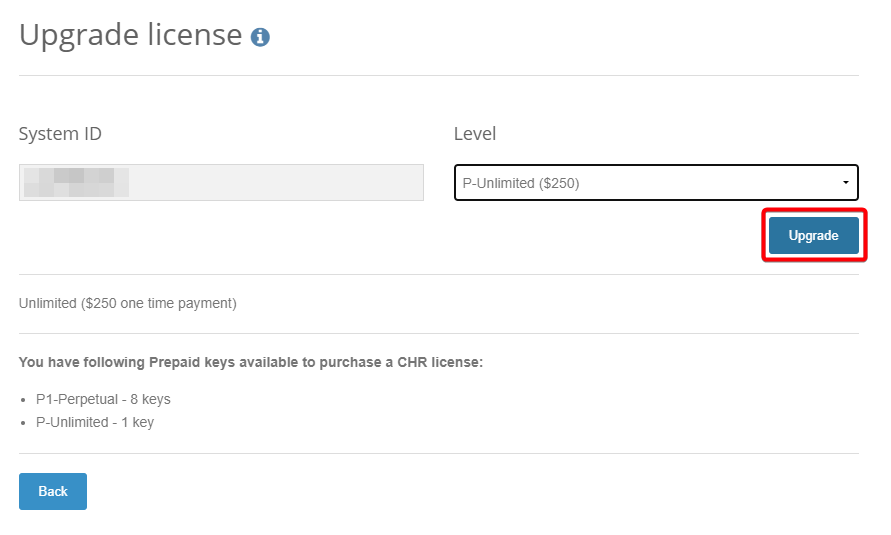
Click Upgrade.
-
Choose the desired license level (P10 or P-Unlimited) and click Upgrade.
-
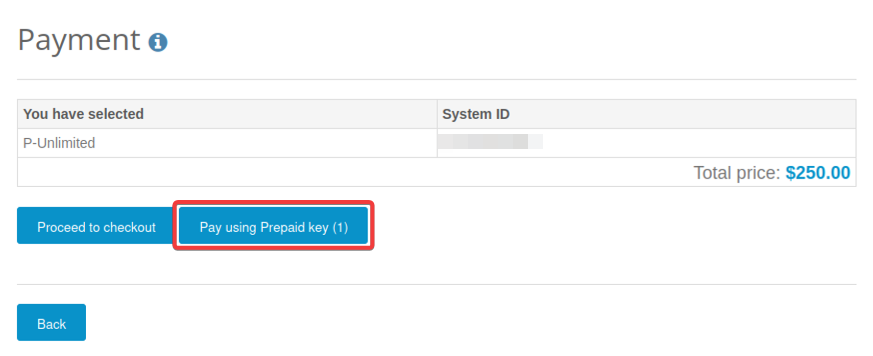
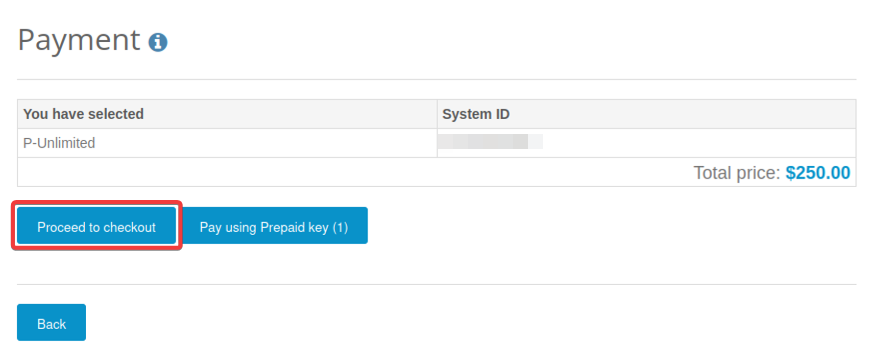
Select a payment option:
-
Pay using Prepaid key — if you have prepaid keys(s) available
-
Proceed to checkout — if you prefer to pay another way
- Choose your payment method:
- Credit card (CC).
- PayPal.
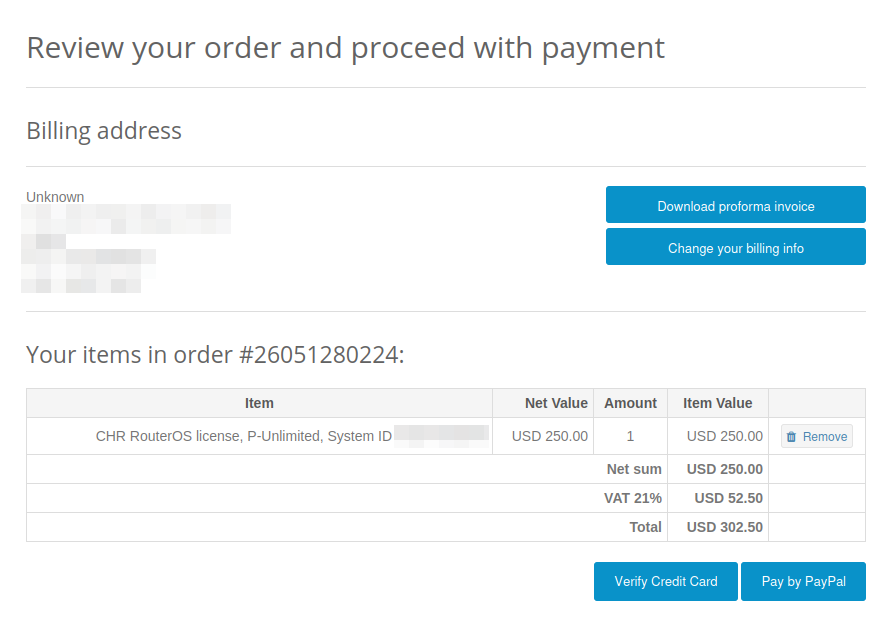
- Complete the payment process.
Your CHR license will be upgraded to the selected level, and your previous license will remain available on your account for future use.
You can upgrade to any license tier except p-unlimited. This tier represents the highest available level and cannot be upgraded further.
License Transfer
Each Cloud Hosted Router (CHR) installation is tied directly to your MikroTik account. You can transfer a perpetual license to another CHR instance, provided both instances are registered under the same account.
Transfer Restrictions
| License Type | Transferable? | Notes |
|---|---|---|
| Perpetual license | Yes | Only to another CHR instance under the same account |
| Prepaid key (purchased) | Yes | Can be transferred to a different account via "Transfer prepaid keys" |
| Prepaid key (from Training) | No | These keys are not transferable |
It is not possible to transfer the Perpetual license to an expired instance. To license an expired CHR instance a Prepaid key must be used.
Prerequisites: Required CHR Instances
Before transferring a perpetual license, you must have:
- The original CHR instance with the license you want to transfer from.
- A target CHR instance registered under the same MikroTik account.
If you do not have a second CHR instance, create one first, then add it to your account.
Transferring a License
Follow these steps to transfer your license:
- Register the new instance
Register the new CHR instance under the same MikroTik account where your old CHR is registered. Use the CLI command:
/system/license/renew
-
Verify both instances appear in your account
Confirm that both the old and new CHR machines are visible in the All CHR keys section of your MikroTik account.
-
Initiate the transfer
-
Go to your account's All CHR keys section.
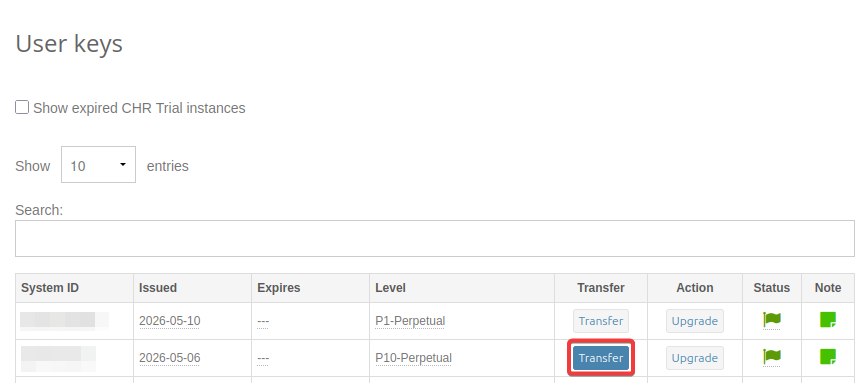
- Click the Transfer button for the System ID you want to transfer.
-
Select the target instance
Choose the System ID you are transferring the license to from the list.
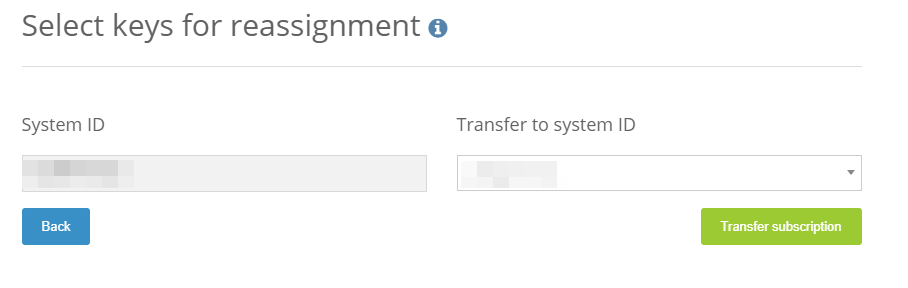
-
Confirm the transfer
Click Transfer subscription to complete the process.
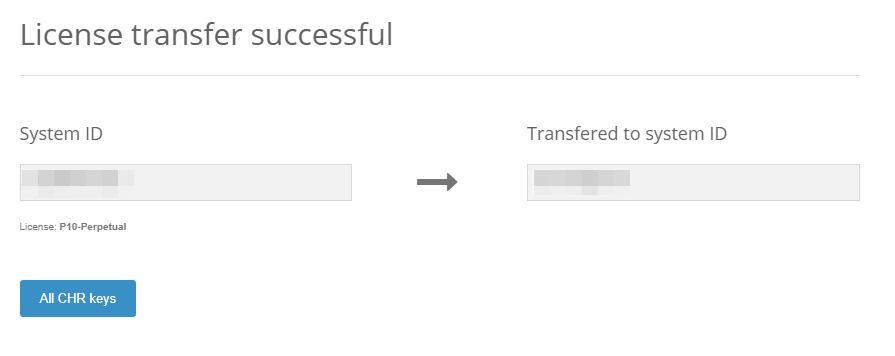
Troubleshooting Transfer Errors
If you receive the error:
"This key is not eligible for transfer as there is no other valid CHR key that could be upgraded to the license level of this key."
It means you don't have a CHR instance in Trial mode to receive the license.
Solution: Create a new CHR instance and add it to your account. Once added, you can transfer the existing license to the new instance.
License Renewal
CHR licenses require periodic communication with the MikroTik license server to maintain license validity.
In the System > License menu, the router displays two important timestamps:
- next-renewal-at — the next time the router will attempt to contact the MikroTik license server.
- deadline-at — the latest time by which successful communication with the license server must occur.
The CHR instance communicates with the license server at:
licence.mikrotik.com
Renewal Process
- After the next-renewal-at time passes, the router attempts license renewal once every hour.
- Renewal attempts continue until the server responds successfully.
License Expiration
If the router cannot contact the license server before the deadline-at time:
- The license enters an expired state.
- RouterOS upgrades are no longer allowed.
- Package changes (enable/disable/install/remove) are no longer allowed.
- The router continues operating with the current license level.
Successful Renewal
After successful communication with the license server:
- The next-renewal-at timestamp is updated.
- The deadline-at timestamp is updated.