Wake on LAN
CLI reference:/tool/wol
Wake on LAN (WoL) turns on a computer that is switched off or asleep by sending it a magic packet: data that holds six FF bytes followed by the computer's MAC address 16 times. The router is always on and connected to the LAN, so it can wake a computer when you are away, or at a set time.
The computer must support Wake on LAN and have it enabled in its firmware (BIOS or UEFI) and in the settings of its network adapter. Most computers wake only through a wired Ethernet connection. SecureOn passwords are not supported.
Wake a computer on the LAN
Give the MAC address of the computer and the interface it is connected to, for example the LAN bridge:
/tool/wol mac=FE:4B:71:05:EA:8B interface=
The router broadcasts the magic packet on that interface. When the interface is a bridge, the packet reaches all its ports; for a computer in a VLAN, give the VLAN interface. The command prints nothing. To check that the computer woke up, ping it after it has had time to start.
Always give interface. Without it, the router sends the magic packet as an IP broadcast through its default route, which on most routers is the internet connection, not the LAN.
Note the MAC address of the computer while it is on. The DHCP server leases show it with the host name, and the ARP table with the address:
/ip/arp/print where address=192.168.88.20
The ARP entry disappears some time after the computer is switched off, so keep the MAC address, for example in a static DHCP lease.
Send a wake packet in WinBox
Open Tools > WoL:
- Enter the target device's MAC Address. The screenshot uses the address from the command example.
- In Interface, select the interface through which the computer is reachable, for example
bridgein the default configuration. The screenshot showsether1.
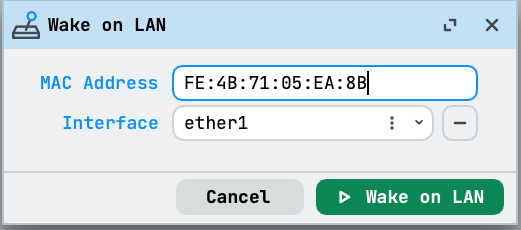
Select Wake on LAN to send the packet, or Cancel to close the dialog without sending it. The target device must have Wake on LAN enabled in its own hardware and operating system.
Wake a computer from outside the network
Connect to the router over a VPN, such as Back To Home or WireGuard. Then open WinBox, WebFig or an SSH session to the router through the VPN and run the command there. The router sends the magic packet on the LAN, where the computer receives it.
Wake a computer at a set time
To turn on an office computer every morning at 07:45, add a scheduler entry. The scheduler uses the router's clock, so check its time and time zone in Clock:
/system/scheduler/add name=wake-office-pc interval=1d \
    start-time=07:45:00 \
    on-event="/tool/wol mac=FE:4B:71:05:EA:8B interface=bridge"
Wake several computers
To wake a group of computers with one command, list their MAC addresses:
:foreach m in={"FE:4B:71:05:EA:8B";"FE:4B:71:05:EA:8C"} do={
/tool/wol mac=$m interface=
}
To wake the group on working days only, put the loop in a script and run it from the scheduler with days:
/system/script/add name=wake-office-pcs source={
:foreach m in={"FE:4B:71:05:EA:8B";"FE:4B:71:05:EA:8C"} do={
/tool/wol mac=$m interface=
}
}
/system/scheduler/add name=wake-office days=mon,tue,wed,thu,fri \
start-time=07:45:00 on-event=wake-office-pcs
Technical details
The magic packet holds 6 bytes of FF followed by the target MAC address repeated 16 times. RouterOS sends it in one of two forms:
- With
interface: an Ethernet frame with EtherType0x0842(Wake on LAN), sent to the broadcast MAC addressFF:FF:FF:FF:FF:FFfrom the MAC address of the interface. It needs no IP configuration and stays on that layer-2 segment. - Without
interface: a UDP packet to255.255.255.255, port 9, from the router's address, sent through the interface of the default route.
For the parameters, see the /tool/wol CLI reference.