Scheduler
CLI reference:/system/scheduler
The scheduler runs RouterOS commands, or a script from /system/script, at a set time, repeatedly at an interval, every time the router starts, or on selected weekdays. Use it for tasks such as nightly backups, switching interfaces or bandwidth limits by time of day, and notifications. Each entry in /system/scheduler holds the schedule and the commands to run in on-event.
The scheduler is not available when the device mode is home, and entries cannot be created or enabled while the device is flagged.
Run a script every day
Store the commands as a script, then add an entry that runs it every day at 03:00. The following script saves a binary backup and an export of the configuration, overwriting the files from the previous night:
/system/script/add name=nightly- source={
/system/backup/save name=nightly
/export file=nightly
}
/system/scheduler/add name=nightly- start-time=03:00:00 interval=1d \
on-event=nightly-
After you create the nightly-backup script, configure its schedule in WinBox under System > Scheduler > New:
- Set Name to
nightly-backup, choose the Start Date, set Start Time to03:00:00, and set Interval to1dfor a daily run. Leave Days unset to allow every day. - Review Policy and select the permissions the task requires. The screenshot shows the new-entry defaults; use the Permissions section to choose the appropriate permissions for your script.
- Enter
nightly-backupin On Event, leave Enabled selected, and select OK. On Event can also hold commands directly.
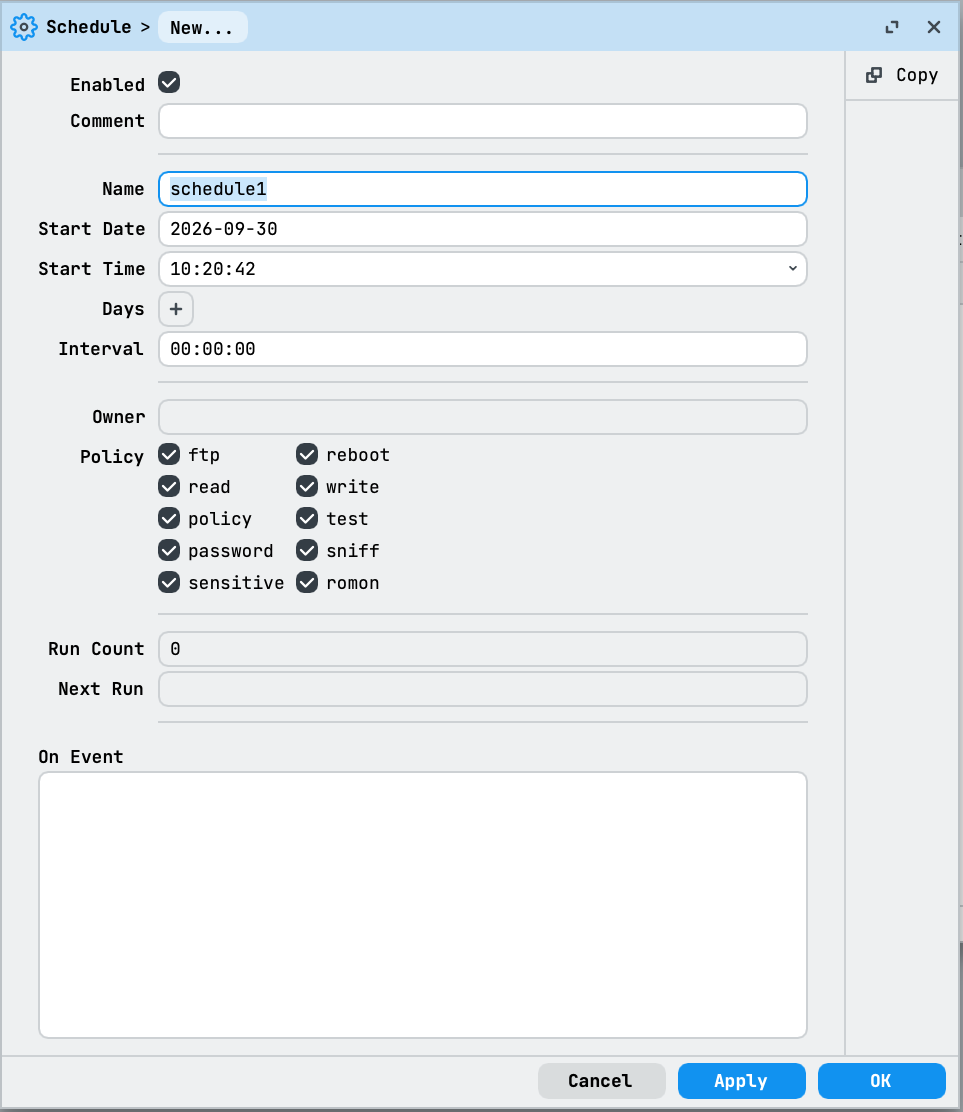
After saving, check Next Run in the Scheduler list and use Run Count to see whether the entry has run. The screenshot shows a new entry before the example values are entered.
When start-date is not given, the entry starts on the day it is added. next-run shows when it runs next, and run-count counts the runs since the last startup:
[admin@MikroTik] > /system/scheduler/print detail
0 name="nightly-backup" start-date=2026-09-25 start-time=03:00:00 interval=1d
on-event=nightly- owner="admin"
policy=ftp,reboot,read,write,,test,password,sniff,sensitive,romon
run-count=0 next-run=2026-09-26 03:00:00
To pause an entry without removing it, disable it with /system/scheduler/disable nightly-backup. To encrypt the backup file, add password= to /system/backup/save. See Backup for restoring the files.
Run commands without a script
on-event can hold the commands directly. The following entries turn off all LEDs of the device at night and turn them on again in the morning:
/system/scheduler/add name=leds-off start-time=22:00:00 interval=1d \
    on-event="/system/leds/settings/set all-leds-off=immediate"
/system/scheduler/add name=leds-on start-time=07:00:00 interval=1d \
    on-event="/system/leds/settings/set all-leds-off=never"
Short commands fit well in on-event. Longer tasks are easier to read and change as a script.
Run a script at startup
An entry with start-time=startup runs every time the router starts. It runs early during startup, before the interfaces are up and before the DHCP client has an address, so a script that needs the network must wait for it. The following script waits until the default route is active (at most five minutes) and then sends an email:
/system/script/add name=boot-notify source={
    :local tries 0
    :while (([:len [/ip/route/find where dst-address=0.0.0.0/0 active]] = 0) \
            && ($tries < 60)) do={
        :delay 5s
        :set tries ($tries + 1)
    }
    :local name [/system/identity/get name]
    :local version [/system/resource/get version]
    :local uptime [/system/resource/get uptime]
    /tool/e-mail/send to=admin@example.com subject=($name . " restarted") \
        body=("RouterOS " . $version . " started, uptime " . $uptime)
}
/system/scheduler/add name=boot-notify start-time=startup on-event=boot-notify
The email examples on this page need a working email server configuration in /tool/e-mail. See E-mail.
With a non-zero interval, a startup entry does not run at startup itself: the first run comes one interval after startup, and the entry then runs every interval. To run a script at startup and also at regular intervals, create two entries.
Run on selected weekdays
days limits an entry to selected weekdays. The following entries turn on a guest Wi-Fi interface at 08:00 and turn it off at 18:00, Monday to Friday. Over the weekend it stays off:
/system/scheduler/add name=guest-wifi-on days=mon,tue,wed,thu,fri \
    start-time=08:00:00 on-event="/interface/enable guest-wifi"
/system/scheduler/add name=guest-wifi-off days=mon,tue,wed,thu,fri \
    start-time=18:00:00 on-event="/interface/disable guest-wifi"
On a Friday evening, the next runs are on Friday at 18:00 and on Monday at 08:00:
[admin@MikroTik] > /system/scheduler/print detail where name~"^guest-wifi"
3 name="guest-wifi-on" start-date=2026-09-25 start-time=08:00:00
days=mon,tue,wed,thu,fri interval=0s on-event=/interface/enable guest-wifi
owner="admin"
policy=ftp,reboot,read,write,,test,password,sniff,sensitive,romon
run-count=0 next-run=2026-09-28 08:00:00
4 name="guest-wifi-off" start-date=2026-09-25 start-time=18:00:00
days=mon,tue,wed,thu,fri interval=0s on-event=/interface/disable guest-wifi
owner="admin"
policy=ftp,reboot,read,write,,test,password,sniff,sensitive,romon
run-count=0 next-run=2026-09-25 18:00:00
To allow or block traffic by time of day, use the time matcher of the firewall filter instead of enabling and disabling rules with the scheduler, for example time=08:00:00-18:00:00,mon,tue,wed,thu,fri. The rule then applies by itself, without scheduler entries.
How the schedule is calculated
Start time and interval
The first run is at start-date and start-time, which default to the moment the entry is added. After that, the entry runs every interval. Runs stay aligned to the start time plus whole intervals, so a start in the past sets the rhythm: start-time=00:00:00 interval=1h runs on every full hour, no matter when the entry was added.
With interval=0s, the default, the entry runs once. It stays in the list with run-count=1 and no next-run.
Weekdays
When days is not set, the weekday is not considered and the interval continues across midnight: an entry with start-time=00:00:00 interval=17h runs at 00:00 and 17:00 on the first day and at 10:00 on the next.
When days is set, each listed day starts again at start-time, and the entry repeats every interval until the end of that day. The next run is at start-time on the next listed day. With interval=0s, the entry runs once on each listed day. days=always applies these rules to every day, and days=never stops the entry from running.
An interval of 1d or longer is not supported together with days. Such an entry shows the note multi-day intervals are not supported with active day scheduling. For one run per day, use interval=0s.
Entries due at the same time
Entries due at the same moment start together, in no fixed order. When tasks must run in a specific order, call them one after another from a single script.
Reboots and the clock
A reboot resets run-count to 0. Schedules follow the router's local time and time zone, see Clock. Keep the clock synchronized, for example with NTP; after a startup, the clock can differ from the real time until it is synchronized.
Permissions
Each entry runs its commands with the policies in policy. By default, these are the policies of the user who adds the entry, limited to the policies that apply to scripts. owner shows that user. Commands that need a policy the entry does not have fail, and the log shows not enough permissions (9) with the name of the entry.
When on-event is the name of a script, the script also runs with the entry's policies. RouterOS refuses to run a script whose own policy includes rights the entry does not have. To run a script with only its own policies, use /system/script/run <name> use-script-permissions in on-event. See Script permissions.
More examples
Email a weekly backup
The following script saves an encrypted backup every Sunday at 02:00 and sends it as an email attachment:
/system/script/add name=email- source={
:local name [/system/identity/get name]
/system/backup/save name=weekly password=ChangeThisPassword
/tool/e-mail/send to=admin@example.com file=weekly. \
subject=($name . " backup " . [/system/clock/get date]) \
body="Weekly configuration backup."
}
/system/scheduler/add name=email- start-time=02:00:00 days=sun \
on-event=email-
A backup contains passwords, keys and certificates. Choose your own backup password and send the file only to a mailbox you trust.
Get notified about new RouterOS versions
The following script checks for a new RouterOS version every morning at 09:00. When one is available, it writes a warning to the log and sends an email. The check runs in the background, so the script waits 15 seconds before it reads the result:
/system/script/add name=update-check source={
    /system/package/update/check-for-updates once
    :delay 15s
    :if ([/system/package/update/get status] = "New version is available") do={
        :local name [/system/identity/get name]
        :local latest [/system/package/update/get latest-version]
        :log warning ("RouterOS " . $latest . " is available")
        /tool/e-mail/send to=admin@example.com \
            subject=($name . ": RouterOS " . $latest . " is available") \
            body="Install it with /system/package/update/install."
    }
}
/system/scheduler/add name=update-check start-time=09:00:00 interval=1d \
    on-event=update-check
The script only reports the new version; install it at a time you choose, see Upgrade.
Change the guest Wi-Fi password every week
The following script sets a new random password for the WiFi security profile guest every Monday at 06:00 and sends it by email, for example to the reception desk. The character set leaves out characters that are easy to confuse, such as 0, O, 1 and l:
/system/script/add name=guest-password source={
    :local chars "abcdefghjkmnpqrstuvwxyzABCDEFGHJKLMNPQRSTUVWXYZ23456789"
    :local pass [:rndstr length=12 from=$chars]
    /interface/wifi/security/set [find name=guest] passphrase=$pass
    /tool/e-mail/send to=reception@example.com subject="Guest Wi-Fi password" \
        body=("The guest Wi-Fi password for this week is " . $pass)
}
/system/scheduler/add name=guest-password start-time=06:00:00 days=mon \
    on-event=guest-password
Guests need the new password to connect after the change.
Limit guest bandwidth during business hours
The following simple queue limits a guest network to 50 Mbps. On working days from 08:00 to 18:00 the limit drops to 10 Mbps, so guests do not slow down the office connection:
/queue/simple/add name=guest target=10.0.20.0/24 max-limit=50M/50M
/system/scheduler/add name=guest-limit-day days=mon,tue,wed,thu,fri \
    start-time=08:00:00 on-event="/queue/simple/set guest max-limit=10M/10M"
/system/scheduler/add name=guest-limit-evening days=mon,tue,wed,thu,fri \
    start-time=18:00:00 on-event="/queue/simple/set guest max-limit=50M/50M"
Technical details
Log messages
Adding, changing and removing entries writes system,info messages such as new script scheduled by ..., changed scheduled script settings by ... and script removed from scheduler by .... Configuration changes made by an entry name the entry, for example:
system,info device changed by scheduler:guest-wifi-off/action:8 (/interface set guest-wifi disabled=yes)
A failed run writes script,error messages with the reason and the line of the failing command:
script,error executing script email-backup
script,error,debug (scheduler:email-backup) failure: error connecting to server (/tool/e-mail/send; line 4)
The reset command
/system/scheduler/reset clears on-event and sets interval to 0s. It does not reset run-count.
For all properties, see /system/scheduler in the CLI reference.