CLI reference:/tool/e-mail/tool/e-mail/send
The router sends email through an SMTP server: the server of your email provider or your own mail server. Scripts and the scheduler use it to send alerts, backups and configuration exports, and the watchdog uses it to send support output files.
The router logs in to the server with AUTH PLAIN. For encryption, it uses TLS from the start of the connection (tls=yes) or upgrades a plain connection with STARTTLS (tls=starttls). Without TLS, the user name and password cross the network unencrypted, so use TLS with every server that is not on your own network.
Configure the SMTP server
The server settings are in /tool/e-mail. Choose tls to match the port of the server:
| Port | tls | Use |
|---|---|---|
| 587 | starttls | Mail submission with STARTTLS, offered by most email providers. |
| 465 | yes | Implicit TLS: the connection is encrypted from the start. |
| 25 | no | Plain SMTP, only for a relay on your own network that accepts it. |
The two do not mix: tls=yes on port 587 fails with TLS handshake failed, and tls=starttls on port 465 fails with timeout occured.
For example, to send through Gmail with STARTTLS and certificate verification:
/tool/e-mail/set server=smtp.gmail.com port=587 tls=starttls \
    certificate-verification=yes from=you@gmail.com \
    user=you@gmail.com password="xxxx xxxx xxxx xxxx"
Gmail does not accept your Google account password from devices such as routers. Turn on 2-Step Verification for your Google account, create an App password (in your Google account under Security, App passwords), and use the generated 16-character password as password.
certificate-verification is no by default: the router encrypts the connection, but does not check the server's certificate. Set it to yes to check the certificate against the router's trust store. The built-in trust store covers email by default, so the certificate of a public provider such as Gmail verifies without further setup. When the certificate does not match the server name, the send fails with TLS handshake failed (ssl: name verification failed for: ...).
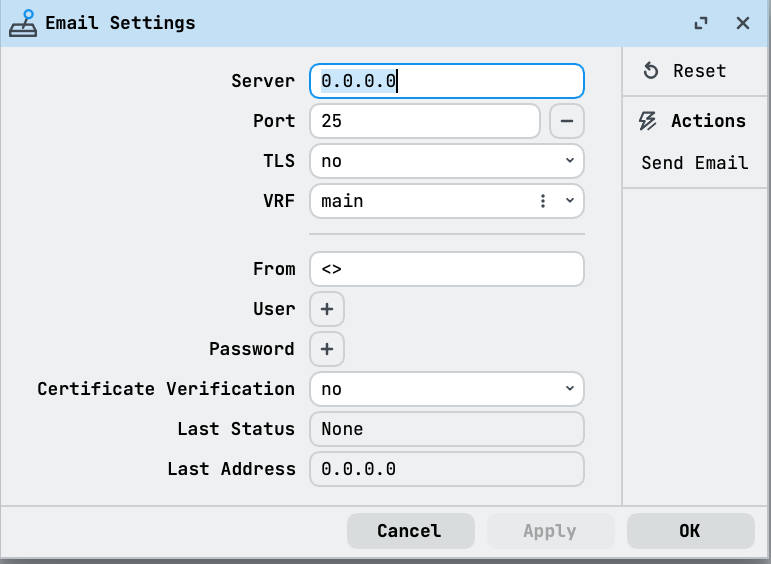
In WinBox, open Tools > Email to configure the SMTP connection:
- Set Server, Port, and TLS to the values supplied by your email provider. The screenshot shows unconfigured values, not settings for a working mail server.
- Enter the sender address in From. Use the + controls to set User and Password if the server requires authentication.
- Review Certificate Verification for a TLS connection and select OK to save the configuration. Use the server settings in the CLI reference for the verification options and certificate requirements.
Send a message
Send a message with /tool/e-mail/send:
/tool/e-mail/send to=admin@example.com subject="Router alert" \
    body="The backup link is down."
The command uses the settings of /tool/e-mail. Any setting given to the command, such as server, port, tls or from, overrides the setting for this message only.
- Separate several recipients with commas, in
toand incc. The router sends one message to all of them. \ninbodystarts a new line.fileattaches files from the router's file list, several separated by commas. A file that does not exist is refused before the message is sent, withinput does not match any value of file.- Always set
from. Without it, the router sends the message with an empty sender (<>), which many servers refuse.
/tool/e-mail/print shows the result of the last message in last-status: succeeded or failed.
To send a message in WinBox, open Tools > Email and select Send Email in the right panel:
- Set To and Subject. Use Cc for additional recipients and From to override the configured sender when required.
- Enter the message in Body. Use the + control beside Files to attach a file already stored on the router.
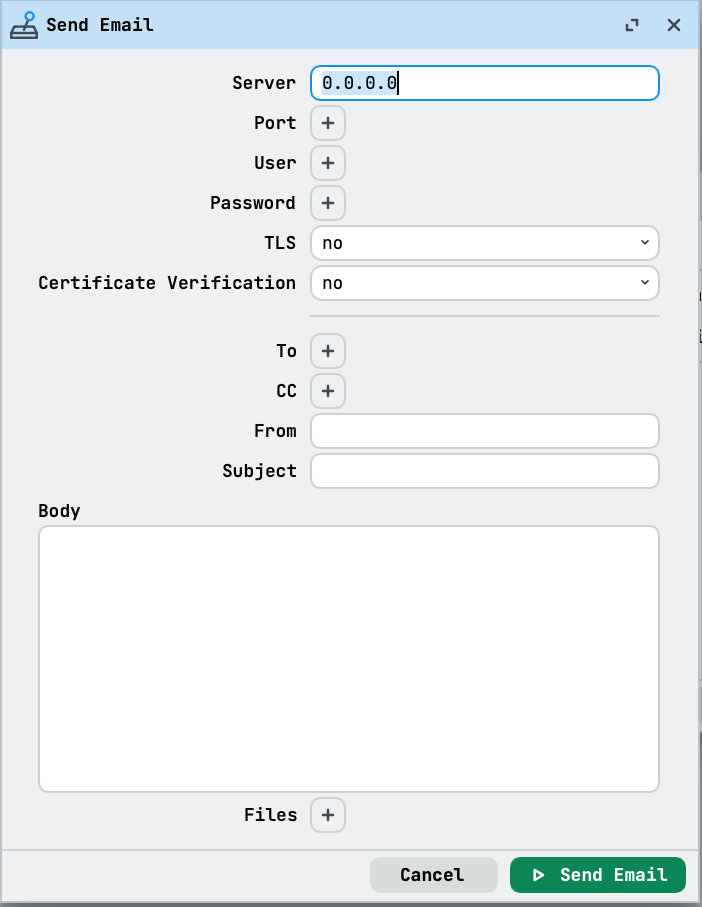
Review the SMTP settings and recipients, then select Send Email to transmit the message. Cancel closes the dialog without sending it. Check Last Status in Email Settings if delivery fails.
Email the configuration export every day
Send the router's configuration export to an administrator every night.
-
Configure the SMTP server, for example a relay on your network:
/tool/e-mail/set server=192.0.2.25 port=25 from=router@example.com -
Add a script named
export-emailthat writes the export and sends it:/export file=/tool/e-mail/send to=config@example.com file=.rsc \subject="$[/system/identity/get name] export" \body="$[/system/clock/get date] configuration file" -
Add a scheduler entry that runs the script every 24 hours:
/system/scheduler/add name=-email on-event=-email \start-time=00:00:00 interval=24h
The export hides passwords and other sensitive values by default, see Configuration export.
Troubleshoot
When a message cannot be sent, the command stops with a failure: message and last-status is failed:
| Message | Meaning |
|---|---|
TLS handshake failed (timeout) | tls=yes against a STARTTLS port such as 587. Use tls=starttls. |
TLS not supported by server | tls=starttls, but the server does not offer STARTTLS. The router does not fall back to an unencrypted connection. |
timeout occured | No answer from the server, for example tls=no or tls=starttls against an implicit TLS port such as 465. |
invalid FROM address | The server refused the sender. Gmail also answers this way to a connection without TLS, so check tls as well as from. |
AUTH failed | Wrong user or password. Gmail needs an App password. |
recipient address required | to is missing. |
TLS handshake failed (ssl: name verification failed for: ...) | With certificate-verification=yes, the server's certificate does not match the server name. |
When server is a name, last-address in /tool/e-mail/print shows the address the router connected to.
Technical details
SMTP session
The router greets the server with its address in brackets (for example EHLO [192.0.2.1]) and logs in with AUTH PLAIN. Each message has a Date header in the router's time zone and a Message-ID that ends with the router identity.
Text and attachments
A message without attachments has no MIME headers: the router sends the subject and body as they are, without declaring a character set. With attachments, the message is multipart/mixed, the text part is declared as US-ASCII, and each file is attached as application/octet-stream with its file name. Gmail shows UTF-8 text in both cases correctly. For alerts that must read correctly in every mail client, use plain ASCII text.
VRF
vrf in /tool/e-mail selects the VRF in which the router opens the connection to the server.
For all parameters, see the CLI reference for /tool/e-mail and /tool/e-mail/send.