Clock
CLI reference:/system/clock/system/clock/manual
The RouterOS system clock provides the local date and time for log entries, the scheduler, file creation times, certificate validity checks and other time-dependent functions. RouterOS keeps the time in UTC and applies the configured GMT offset, including daylight saving time (DST), when the time is displayed.
No configuration is needed on a router with internet access: the time zone is detected automatically, and the MikroTik cloud service sets the clock when the router starts. For accurate timekeeping, enable the NTP client.
The router's internal CPU clock is not a reliable time source for precise timing operations, as its frequency can vary with power management, thermal conditions and hardware differences, even between identical models. This variation does not affect how the router forwards traffic or runs its services. For accurate timekeeping, use network-based time synchronization, for example NTP.
Check and troubleshoot
The current clock state:
[admin@MikroTik] > /system/clock/print
                  time: 09:43:19
                  date: 2026-09-29
  time-zone-autodetect: yes
        time-zone-name: Europe/Riga
            gmt-offset: +03:00
            dst-active: yes
gmt-offset is the offset in use at the moment, with DST included. dst-active shows whether the daylight saving period of the time zone is in effect.
Common causes of a wrong clock:
- The date is 1970-01-02 (or 1970-01-01 in a time zone west of GMT): the router started without a saved time and no time source has set the clock. Enable the NTP client and check that it reaches its servers, check that the router can reach the MikroTik cloud (with
update-time=yesin/ip/cloud; while the NTP client is enabled, the cloud does not set the clock), or set the time manually. - The time is correct but the time zone is wrong: the automatic detection used the location of the router's public IP address, which internet providers sometimes register in another region. Set the time zone manually instead, with the detection off.
- The time is an hour off after a reboot: a
time-zone-nameset by hand whiletime-zone-autodetectis on is replaced by the detected zone shortly after startup. Turn the detection off when you set the zone yourself, as in Set the time zone. - The time is an hour off after you set the date:
dateandtimeset in one command across a daylight saving change use the old offset. Set the time again on its own, for example/system/clock/set time=10:00:00. - A manual time zone stops switching to daylight saving time in the next year: the manual DST period does not repeat. Update
dst-startanddst-end, or use a named time zone.
Set the time
The router can learn the time from several sources:
- The NTP client, which synchronizes the clock precisely and keeps it accurate. Use this when clock accuracy matters.
- The MikroTik cloud service, which sets the clock once at startup when the NTP client is disabled and
update-timeis enabled in/ip/cloud. The cloud time is approximate. - A GPS, on devices with GPS hardware, when
set-system-timeis enabled in/system/gps. - A manual setting:
/system/clock/set date=2026-10-01
/system/clock/set time=10:00:00
Set the date first and the time in a separate command. When you set date and time in one command, the time is interpreted with the GMT offset that was in effect before the change, so across a daylight saving change the clock ends up shifted by the DST difference.
The local time is not part of the exported configuration: /export contains only the time zone settings, never the current date and time.
Set the time zone
Select a named time zone when you can:
/system/clock/set time-zone-autodetect=no time-zone-name=Europe/Riga
In WinBox, open System > Clock and use the Time tab:
- Clear Time Zone Autodetect, then choose Time Zone Name, for example
Europe/Riga. Select OK to save the selection. Leave autodetection selected if you want the cloud service to choose the zone instead. - Check the read-only GMT Offset and DST Active fields to see the offset and daylight saving state in effect.
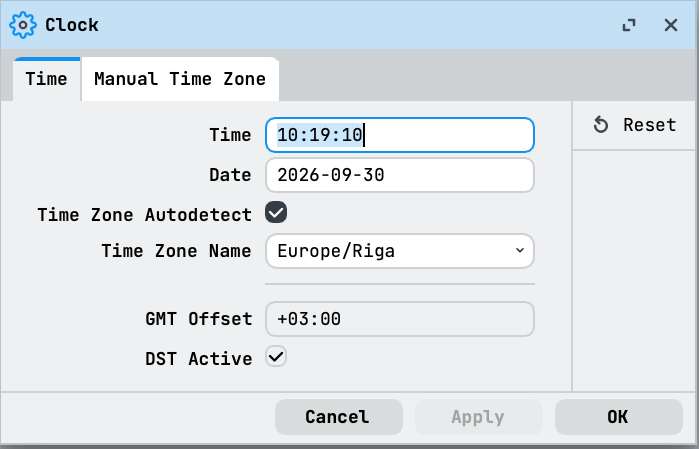
The Time and Date fields are for manual clock changes; use the NTP client for ongoing synchronization.
RouterOS includes most time zones of the IANA time zone database, with the same names. The names are case sensitive, for example Europe/Riga: press Tab after time-zone-name= in the terminal to list them. A misspelled name fails with input does not match any value of time-zone-name. The daylight saving rules of the zone are applied automatically, and a zone without daylight saving, such as Asia/Dubai, keeps one offset all year. Because local time on the router is used for timestamping and time-dependent configuration rather than historical date calculations, time zone information about past years is limited: only data starting from 2005 is included.
Automatic time zone detection
time-zone-autodetect is enabled by default. At startup, the MikroTik cloud service looks up the time zone for the location of the router's public IP address and applies it, including daylight saving time. Detection also runs when you enable the setting again: the detected zone then replaces a manually set one within seconds. A time-zone-name that you set while detection is on is kept only until the next detection, which runs shortly after the next startup.
If the detected time zone is wrong, disable the detection when you set the time zone, as in the example in Set the time zone.
Set a manual time zone and daylight saving
When no named time zone matches, or you need a custom GMT offset, set time-zone-name to manual and configure the /system/clock/manual submenu. These settings have an effect only while time-zone-name is manual, and only a single DST period can be configured.
Set an offset of GMT+02:00 with a one-hour DST from the end of March to the end of October:
/system/clock/set time-zone-autodetect=no time-zone-name=manual
/system/clock/manual/set time-zone=+02:00 dst-delta=+01:00 \
    dst-start="2026-03-29 03:00:00" dst-end="2026-10-25 04:00:00"
[admin@MikroTik] > /system/clock/manual/print
  time-zone: +02:00
  dst-delta: +01:00
  dst-start: 2026-03-29 03:00:00
    dst-end: 2026-10-25 04:00:00
How the manual settings work:
- While DST is not active, the GMT offset is
time-zone. While DST is active, it istime-zone+dst-delta.dst-deltacan be negative, for time zones where the winter time is the daylight saving period. - DST is active from
dst-startuntildst-end, exactly as configured. The period is a single date range and is not repeated in the following years: updatedst-startanddst-endevery year, or use a named time zone, which keeps the rules up to date. - Give
dst-startanddst-endwith both the date and the time. An omitted part is reset: the date to 1970-01-01, the time to 00:00:00. For example,dst-start=05:00:00gives1970-01-01 05:00:00. - If
dst-startis later thandst-end, DST never becomes active. For the southern hemisphere, where the summer spans the year end, setdst-startin the earlier year anddst-endin the later year, for example2026-10-04 02:00:00to2027-04-04 03:00:00.
Technical details
Clock at startup
RouterOS saves the current time when it is changed, on a clean reboot and once a day, and restores it at startup. After a reboot, the clock therefore starts from the saved time even without a network time source, and a time source corrects it when it answers. When the router has no saved time, for example on a new installation, the date starts at 1970-01-02 00:00:00 UTC, displayed with the gmt-offset of the configured time zone.
Clock limits
The date cannot be set before the build date of the installed RouterOS version: the router answers cannot set time before package build time. The latest date the clock accepts is 2038-01-19 03:14:07 UTC; a later date is ignored without an error, and the clock keeps its time.
Time zone detection
The detection uses the same connection to cloud2.mikrotik.com as the other MikroTik cloud services. The detected zone is stored in the configuration and appears as time-zone-name in /system/clock/export. Until the first successful detection, time-zone-name is manual with a GMT offset of +00:00.
For all properties, see /system/clock and /system/clock/manual in the CLI reference.