File Share
CLI reference:/ip/cloud/back-to-home-file/ip/cloud/back-to-home-file/settings
File Share makes a directory or a single file on the router's storage, for example a USB drive, available on the internet through a link. The router serves each share over HTTPS at https://<serial>.routingthecloud.net/s/<key>, where <serial> is the router's serial number and <key> is the random key of the share. The router gets a Let's Encrypt certificate for the name by itself. When the router cannot be reached from the internet directly, the connection goes through a MikroTik relay server (see How the router reaches the cloud). Visitors need only the link, and you can let them upload files as well.
Share a directory or file
Find the path of the directory or file with /file/print, then add a share. The first share makes the router request its certificate, and the share shows the I flag until the certificate is ready, typically within a minute:
[admin@MikroTik] > /ip/cloud/back-to-home-file/add path=usb1/photos expires=never
[admin@MikroTik] > /ip/cloud/back-to-home-file/print detail
Flags: I - INVALID
0 I ;;; getting cert status: requesting SSL
path=/usb1/photos allow-uploads=no expires=never
key="Ab3dE5gH7jK9mNp"
url="https://hf1234abcd5.routingthecloud.net/s/Ab3dE5gH7jK9mNp"
direct-url="https://hf1234abcd5.routingthecloud.net/s/Ab3dE5gH7jK9mNp?dl"
downloads=0
When the I flag is gone, send the url to the people who should get the files. Anyone who has the link can open the share, so keep the link private, and set expires for shares that you need only for a while.
- A directory share opens a page that lists the files in the directory. Visitors can download single files or the whole directory. The
direct-url(theurlwith?dl) downloads the whole directory asdownload.zip. - A file share opens a page for that file. Its
direct-urldownloads the file itself.
The share page shows the router's identity (/system/identity) in its title, and the page data includes the router's board model.
expires takes never, a date and time such as "2026-10-01 00:00:00", or a time interval such as 1h or 7d. The router converts an interval to the date when the share expires. downloads counts the direct downloads of the share. Opening the page does not count.
To stop a share for a while without deleting it, disable it. Its link then returns HTTP 404 until you enable the share again:
/ip/cloud/back-to-home-file/disable 0
Allow uploads
With allow-uploads=yes, visitors of a directory share can upload files to the directory and create folders in it. Without it, the router refuses uploads with HTTP 403. A file share does not offer uploads.
/ip/cloud/back-to-home-file/add path=usb1/inbox expires=7d allow-uploads=yes
Uploaded files use the router's storage, so allow uploads only for people you trust and only for as long as you need them.
WinBox
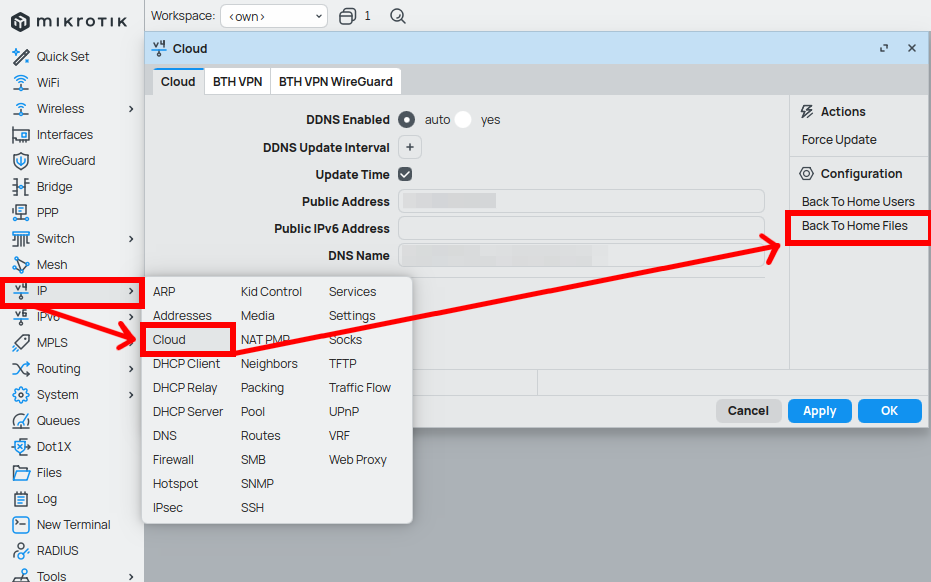
To share a file in WinBox, open IP > Cloud and select Back To Home Files under Configuration.
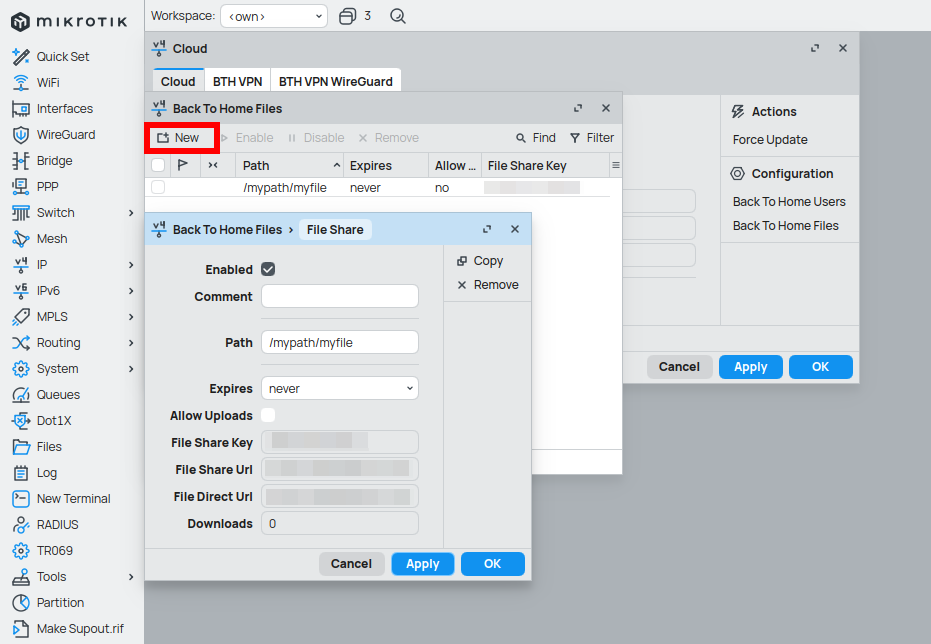
Select New, set Path and Expires, and select Allow Uploads to let visitors upload files.
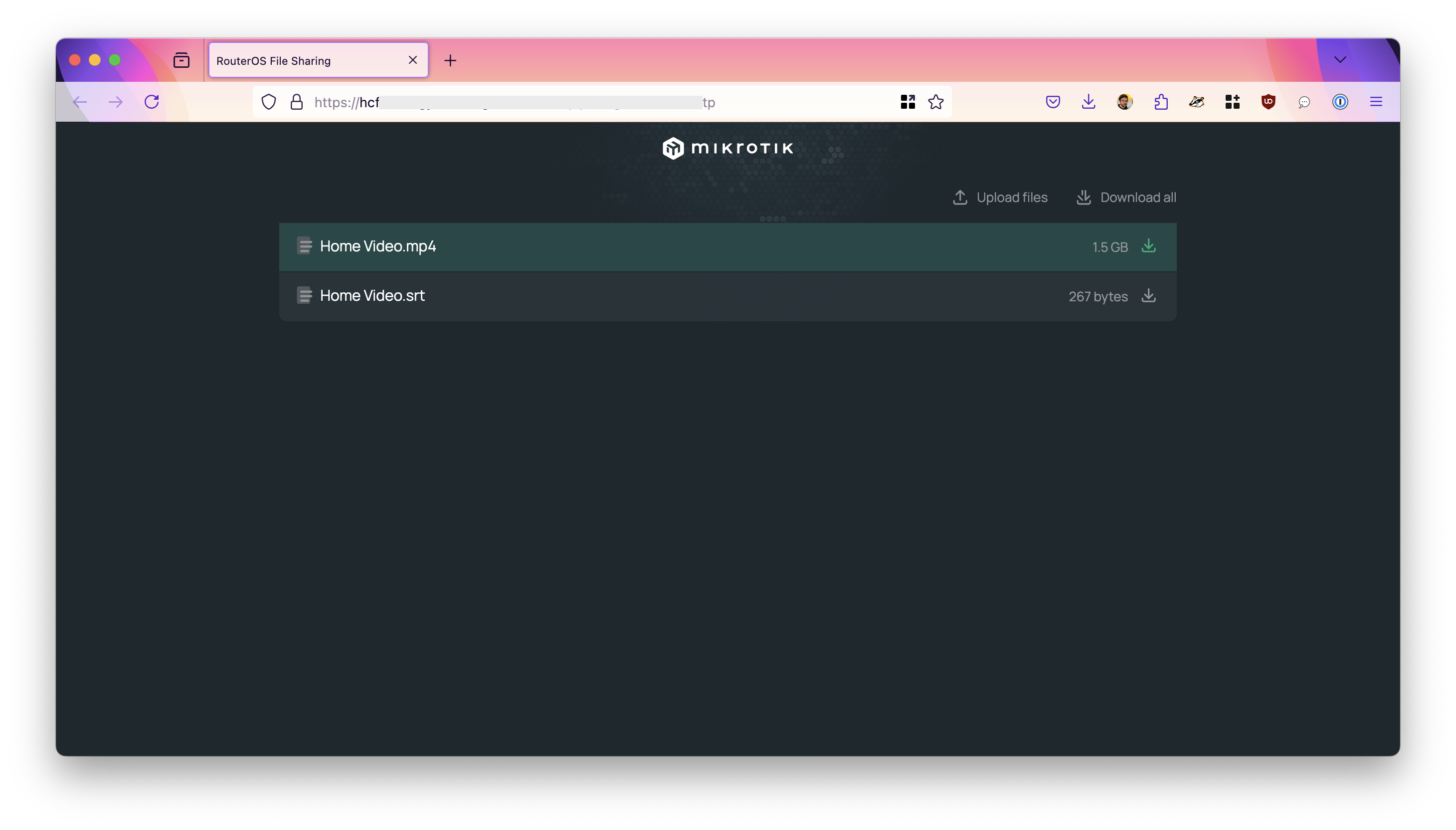
The shared directory opens in the visitor's web browser:
Stop File Share
File Share runs while at least one share exists. When you remove the last share, the service stops and the relay no longer forwards connections to the router:
/ip/cloud/back-to-home-file/remove [find]
The certificate stays on the router, so the next share starts without a new request. To delete the certificate as well, run remove-certificate after you remove all shares. While shares exist, the command fails with cannot remove certificate while file shares active. The next share then requests a new certificate.
/ip/cloud/back-to-home-file/settings/remove-certificate
Technical details
How File Share works
When you add the first share, the router creates a private key and requests a Let's Encrypt certificate for <serial>.routingthecloud.net with the ACME protocol. It completes the DNS-01 challenge through the MikroTik cloud, so it needs no open port for it, also behind NAT. status in /ip/cloud/back-to-home-file/settings shows the steps, from getting cert status: requesting SSL certificate through requesting validation, requesting authorization and requesting order finalization to running. The private key stays on the router, so a visitor's TLS connection ends on the router, also through the relay.
The router asks the relay server to test whether the router can be reached from the internet directly. When it cannot, for example behind NAT, the router keeps a connection to a relay open, and the name resolves to the relay. The relay forwards the encrypted connections of visitors to the router, and the router does not listen on TCP port 443 on its own addresses. When another service, such as www-ssl (WebFig over HTTPS), already uses TCP port 443 on the router, File Share also uses the relay. relay-ipv4-status and relay-ipv6-status in /ip/cloud/back-to-home-file/settings show the connection to the relay.
Back To Home users with file-access use the same service. Adding such a user also makes the router request the certificate.
What changes on the router
- Shared files and directories show the
S(shared) flag in/file/print;/file/print where sharedlists them. - The certificate is stored in
/certificateasfileshare-<serial>.routingthecloud.net. It is managed by the ACME client, and the router schedules its renewal; thecertificate,infolog shows when it was created, imported and when the next update is due. - After the last share is removed,
enabledin/ip/cloud/back-to-home-file/settingsisno, butdns-namestays in the settings.
For all properties, see /ip/cloud/back-to-home-file and /ip/cloud/back-to-home-file/settings in the CLI reference.